
Car.gr
Car.gr is a classified ads platform. With this section your store automatically creates an XML file with its products in the format Car.gr reads, so they appear as ads. The section has three tools in the Import/Export menu:
- Car.gr XML Setup: setting up and matching your categories with those of Car.gr (done once and then whenever categories change).
- Cargr XML Export: creating the XML file.
- Cargr Control Panel: a short link to your account at Car.gr.
AI tools: in the Setup there are two artificial intelligence tools: the AI suggestion of additions/removals (Step 1) and the Automatic matching with AI of your categories with Car.gr categories (Step 2). They save a lot of work, but check the suggestions before you save. They work when the connection to ChatGPT or Claude is active in the Platform Settings.
Order of tasks: first the Setup (categories), then the Export, and in Car.gr you set the link of the file.
Car.gr XML Setup
The “Car.gr categories matching” page builds the association filter between your store’s categories and Car.gr’s categories. Without this step products cannot be passed to Car.gr. At the top right the counter (e.g. “65 / 73”) shows how many of the store’s categories have already been matched.
Step 1: Car.gr data XML exporter setup
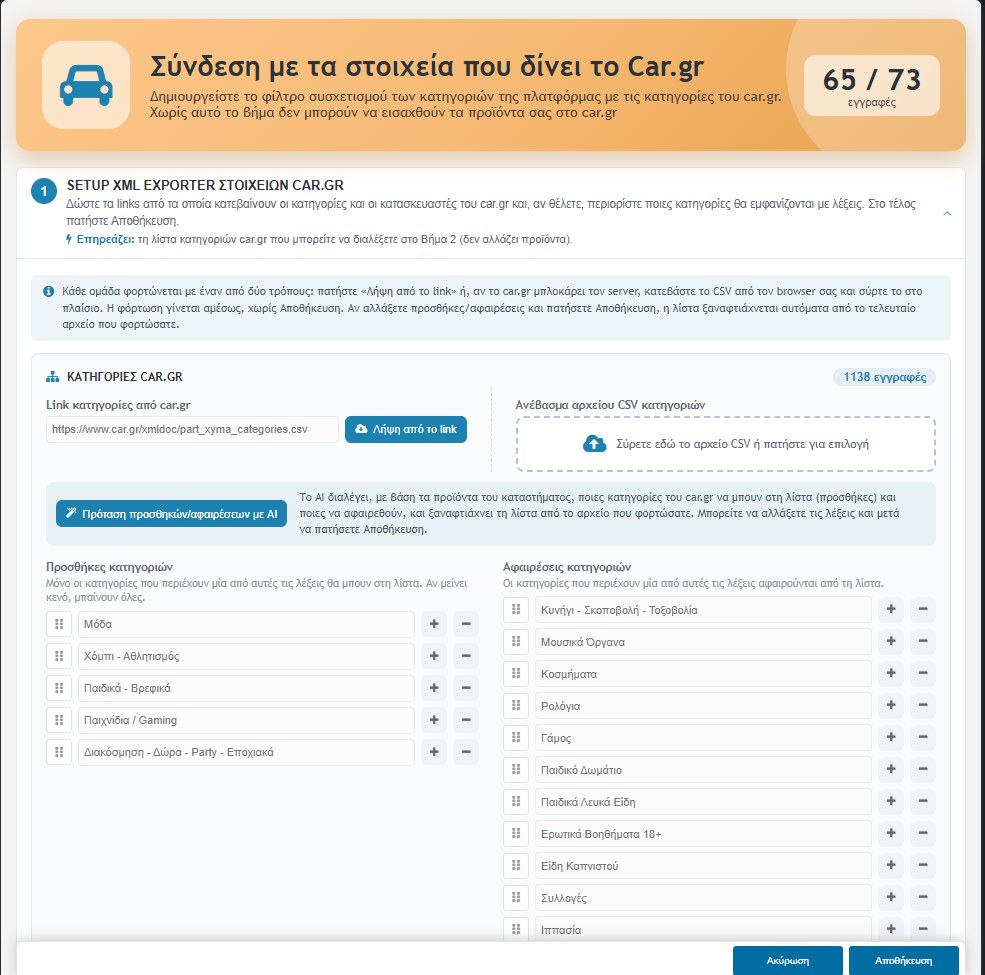
Here you load the data Car.gr provides, in two groups: Car.gr Categories and Car.gr Manufacturers. Each group is loaded in one of two ways:
- Download from the link: the field has the address Car.gr gives and the “Download from the link” button downloads the list.
- Uploading a CSV file: if Car.gr blocks the server, you download the CSV from your browser and drag it into the box.
Loading happens immediately, without Save, and the counter shows how many records were loaded (e.g. 1138 categories and 3232 manufacturers). This step does not change products. It only affects the list of Car.gr categories you can choose from in Step 2.
Since the Car.gr list is huge, you can limit it with words:
- Category additions: only the categories that contain one of these words go into the list. If left empty, all go in.
- Category removals: the categories that contain one of these words are removed from the list.
- With the + / − you add or remove rows of words and with the handle you move them. The field “Find words in the car.gr file” searches in the file you loaded and with + or − you put the word in the additions or in the removals.
- AI suggestion of additions/removals: the AI chooses, based on the store’s products, which Car.gr categories to include and which to remove. You can change the words and then press Save.
If you change the additions or removals and press Save, the list is rebuilt automatically from the last file you loaded.
Step 2: Matching platform categories to a Car.gr code
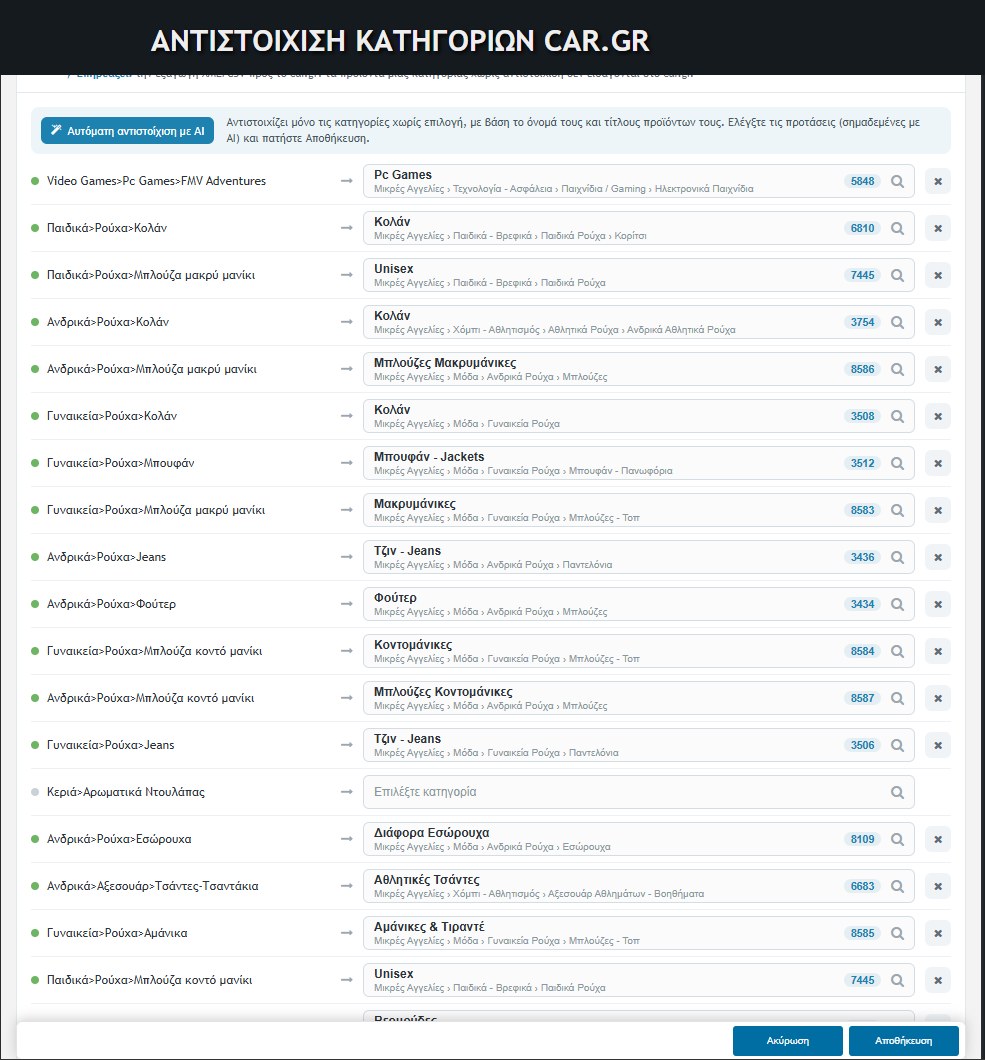
Here you match each category of your store (e.g. “Men>Clothing>Sweatshirts”) with a Car.gr category:
- On the left is the store category. The green dot means it has already been matched and the grey one that it has not.
- In the field on the right you click and choose with search the corresponding Car.gr category. Its name, its path and its code (e.g. 3434) are shown.
- The × clears the choice.
- Automatic matching with AI: matches only the categories that have no choice, based on their name and the titles of their products. The suggestions are marked as “AI” and you must check them before saving.
Important: the products of a category without a match are not imported into Car.gr. At the end press Save.
Step 3: Car.gr data
Two collapsed sections (“Categories” and “Manufacturers”) show, for checking only, the data downloaded from Car.gr. You don’t need to change anything there.
Cargr XML Export
The tool creates the XML file with the ads. With one click the file CargrExport.xml is prepared in the store’s folder. At the end a success message appears with the number of rows and items exported, and with a link to the file, its size and the creation time.
- Which products are exported: those that have stock, a photo and are visible in the store, and belong to a category you matched in the Setup.
- What each ad contains: title, description (from the product’s text), price (with the discount or policies that apply), photos, a link to the store, condition (New or Used, depending on the category) and tags.
- MPN alias: if a product has an MPN alias (for problematic codes), that is used, and the message at the end states how many such changes were made.
The file can also be created automatically from the server (cron), as the exporter’s code provides. In Car.gr you set the link of the file in your account settings, so it reads it periodically.
Cargr Control Panel
It is simply a short link to the ad settings of your account at Car.gr, so you can open it from the same menu. There you set the link of the XML file in Car.gr.