
Pricing Policies
Pricing Policies are the store’s discount rules. Instead of putting a discount on each product separately, you define rules like “20% on all Nike products of last season” or “50% on Clothing” and the store calculates the price by itself. You find them in the menu Pricing Policies.
How it works
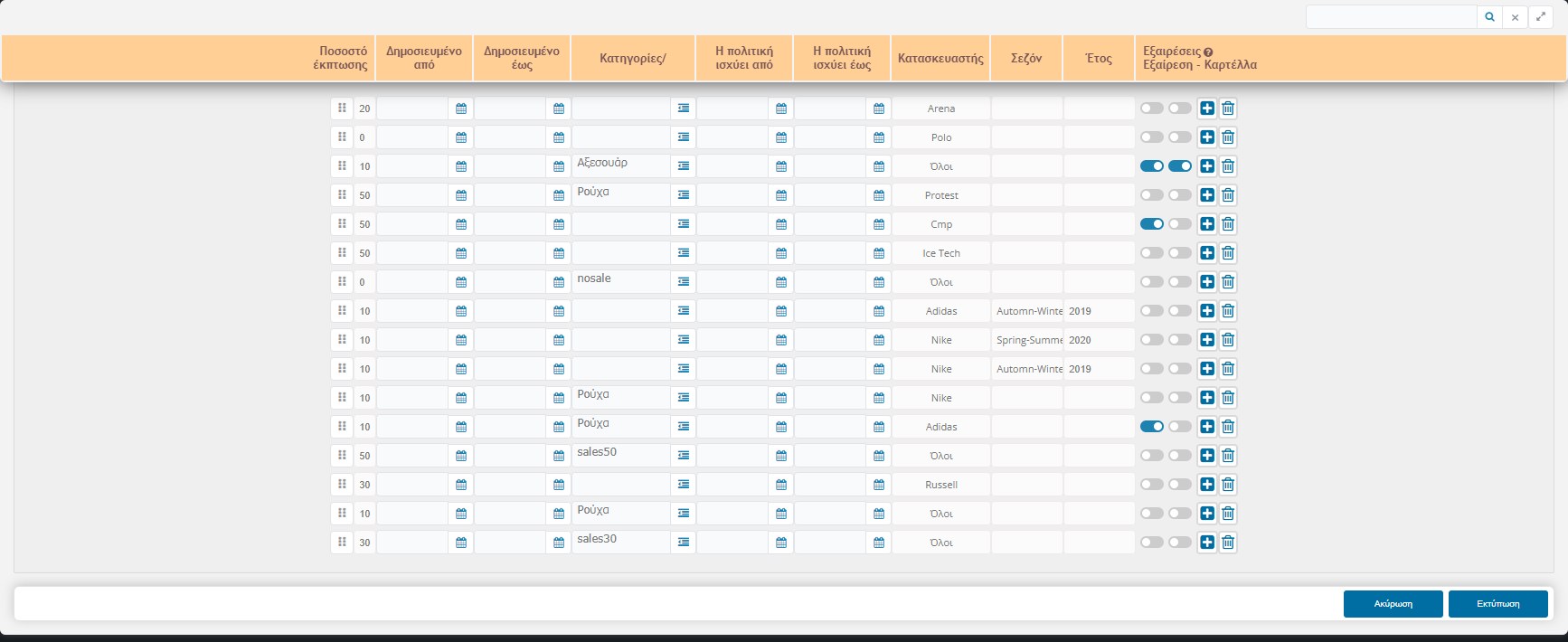
Each row is a rule: a discount percentage and the conditions under which it applies. For each product the store checks the rules from top to bottom and applies the first one that matches. A product matches when it meets all the conditions of the row. A condition you leave empty means “any”.
Order matters: put the most specific rules at the very top and the general ones at the bottom. The order is changed with the handle (dots) to the left of the row. If two rules match the same product, the upper one wins.
The resulting price is shown in the store (price and discount badge) and is also used in the exports to price comparison sites and marketplaces.
The columns of each rule
- Discount percentage: the discount in %. 0 is useful for excluding products from other rules (see below).
- Published from / to: the rule applies only to products that were registered in this time period (with a date picker).
- Categories / Find: which products it concerns. You can write words (separated by commas) or choose from the button with the list. The rule matches if the word exists in the product’s category or in its name. This way you can make a rule for a keyword as well, such as “sales30”.
- The policy applies from / to: the period during which the rule is active (e.g. from Black Friday to Cyber Monday). Outside this period it is not applied.
- Manufacturer: “All” or a specific manufacturer.
- Season and Year: “Automn-Winter” or “Spring-Summer” and the product’s season year (e.g. 2019), for rules like “last season’s sales”.
- Exceptions: two switches, Exception and Product card (see below).
- + and bin: the + adds a new row below its own and the bin deletes the rule. Nothing changes until you press Save.
The Categories / Collection field
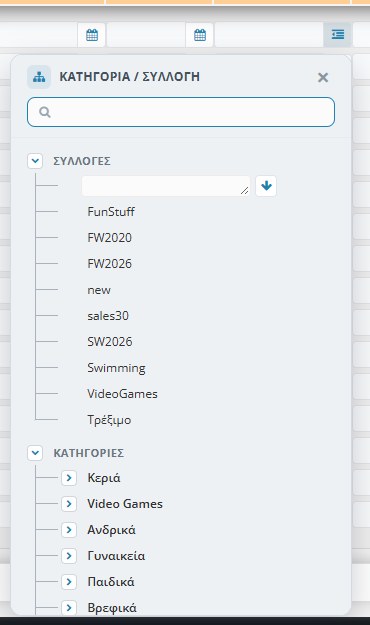
The button next to the field opens a window with search, the store’s collections and the category tree (with the arrows you open the subcategories). What you choose goes into the field, and you can combine it with words.
Exceptions: Exception and Product card
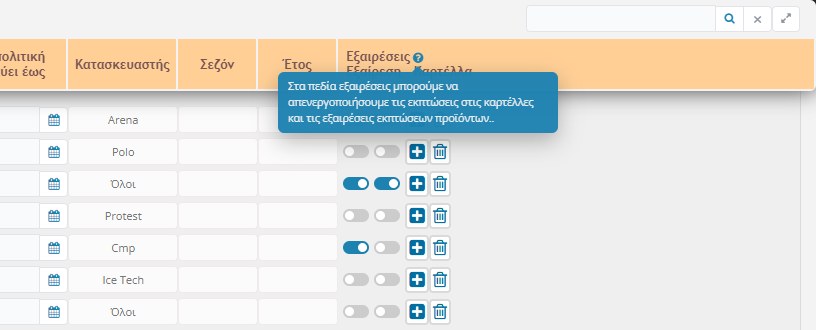
A product can also have its own discount on its card. By default the discount of the card prevails and the policies do not change it. The two switches define when the rule is allowed to override the card:
- Product card: the rule overrides the discount on the card of the product. When the policy gives a larger discount, that one is applied.
- Exception: the rule also applies to products whose card has them marked without discount (an offer with 0%), which would otherwise stay outside the rules.
The page’s explanation sums it up as “deactivation of the discounts on the cards and of the product discount exceptions”. If you are not sure about a rule, leave both switches off. The discount on each product’s card remains as you set it.
Practical examples
- Discount on a category: rule “10” with Categories “Clothing” and Manufacturer “All”.
- Discount on a manufacturer and season: rule “10” with Manufacturer “Nike”, Season “Automn-Winter” and Year “2019”.
- Discount with a keyword: rule “30” with Find “sales30”. You put the word in the name of whichever products you want and they automatically get the discount.
- Excluding products: rule “0” with Find “nosale” placed above the general rules. The products that contain the word “nosale” match 0% first and get no discount from the rules that follow.
- Temporary campaign: a rule with “The policy applies from / to” for the days of the campaign. After it expires it stops by itself.
Find and print
- Find: the field at the top right searches for a category, find word or manufacturer within the rules (from 3 characters). The ✖ clears the search.
- Print: the button at the bottom right prints the list of policies on a page with a logo, so you can keep it as a reminder.
- Cancel: reloads the page without keeping the changes you didn’t save.
Don’t forget to Save: the changes (new rule, change of percentage or order, deletion) are applied to the store only after Save. The prices are then updated with the Product Store Updater, which usually runs automatically from the server.
Besides the policies of this page, the Platform Settings also have general policies for the last pieces per category. They are not described here.