
Users
The Users section has everyone who has an account in the store: customers, corporate customers (B2B) and the staff who log in to the BE. It has two pages:
- Users: the list of all accounts.
- User Types: the roles an account can have.
Users
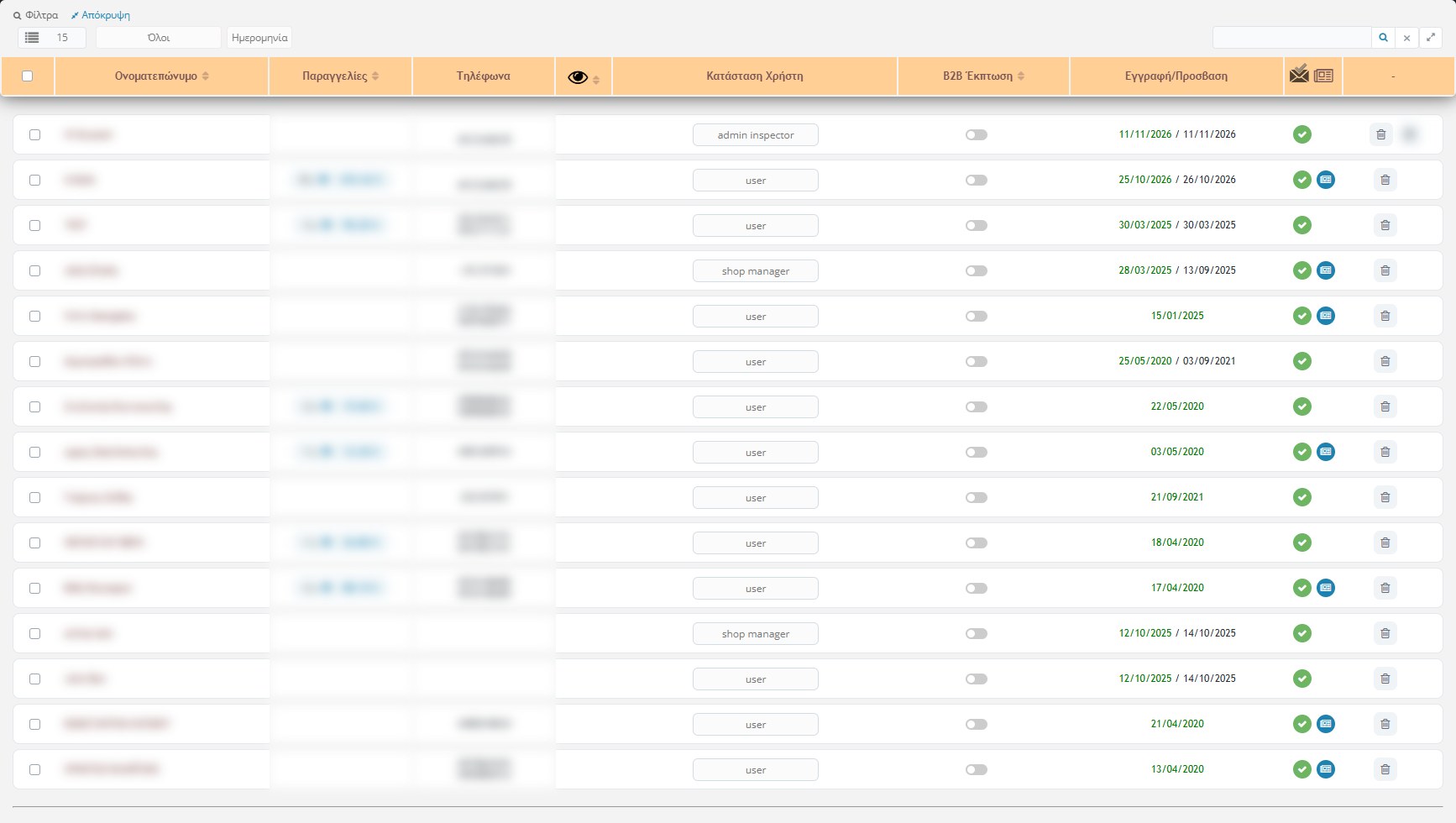
Each row is an account. At the top of the page it states how many users were found.
Filters and search
- Rows per page: from 5 to 30.
- User group: “All”, “All operators”, “Connected operators” (those who currently have an open session in the BE) or a specific user type.
- Sorting: by date, full name, sales, purchase amount, active or B2B. A second click on the column title reverses the order.
- Search: by email or username, by full name or by phone. The ✖ clears the search.
The columns
- Full name: the click opens this user’s orders in a new tab. If you hover over it, all their details appear: email, address, city, country and, for companies, company name, activity, VAT number and tax office. From there you can print the user’s card.
- Orders: how many orders they have made and the total amount, e.g. “3 x 🛒 · 90,20 €”. It stays empty if they haven’t bought.
- Phones: landline and mobile.
- Little eye (active / confirmed): a switch that activates or deactivates the account.
- User status: the type of the account. Customers are “user” and staff have one of the user types.
- B2B Discount: the switch marks the user as a corporate customer. When it is on, a field appears for the discount percentage (%). On hover the bank details they have provided are shown (bank, IBAN, SWIFT, ID).
- Registration / Access: the registration date and, next to it, the last login. If the user hasn’t confirmed their account within 3 days, the date turns red.
- Icons: whether the account is confirmed (green ✔ or red ✖) and whether the user has given consent for newsletters (newspaper icon).
The actions of each row
- Save: saves the changes of this row (active, type, B2B, percentage). As soon as you change something in a row, it is selected automatically.
- Offers (ticket): when there are coupons for “selected users”, it opens a list with switches for giving or removing offers to the user. The number shows how many offers they have. See also the Coupons section.
- Resend confirmation (paper icon): appears when the account is not confirmed and resends the confirmation email.
- Disconnect operator (power button): appears for a connected staff member and logs them out of the BE.
- Delete (bin): deletes the account. It does not appear for the main “admin” account.
Actions on many users
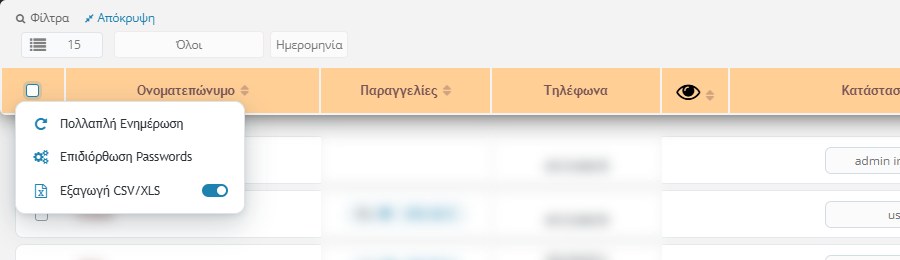
Tick the users you want (or all from the header checkbox) and choose from the menu:
- Multiple Update: saves together the changes of all the selected rows.
- Password Repair: fixes passwords that have not been saved correctly in the database. It does not change users’ passwords and is a maintenance tool.
- CSV/XLS Export: exports the users to a file. The switch next to it chooses the format (CSV or XLS).
Personal data: the page contains customer data. Open it only when needed and be careful where you save the files you export.
User Types
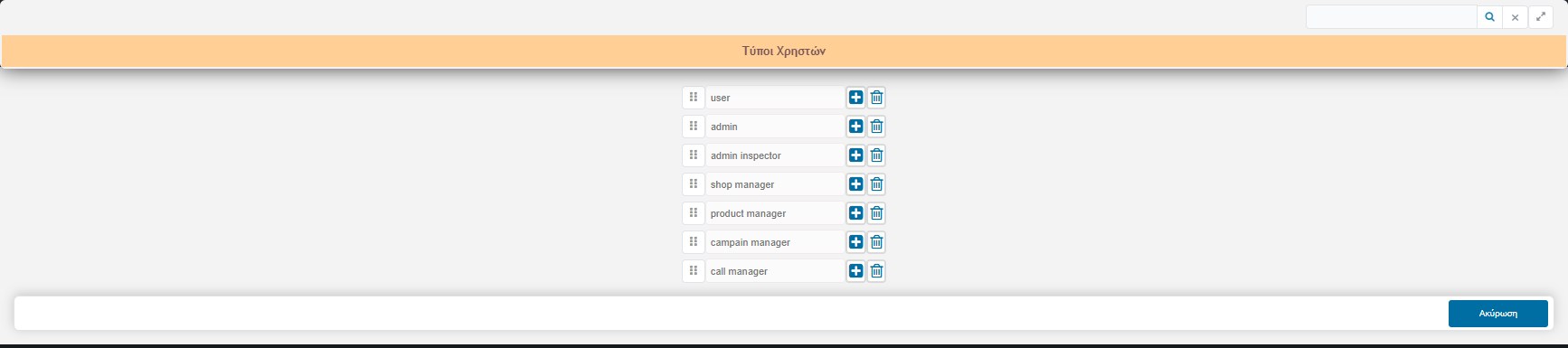
The list of types (roles) an account can take. These are the items that appear in the “User status” column and in the list filter. In this installation the types are: user, admin, admin inspector, shop manager, product manager, campain manager and call manager.
- Adding: the + button next to a row puts a new row below.
- Renaming: you write the new name inside the field.
- Order: you drag a row by the handle.
- Deleting: the bin removes the type. Afterwards you must press Save.
Be careful: the user type affects their permissions in the BE (defined separately in each eshop). Don’t change or delete existing types unless you are sure, because the users who have them may lose their access.