
Coupons
The Coupons page is where you create and manage the store’s discount codes. The customer types the code in the basket and gets the discount. You can also define “buy X, get Y” offers and send the code by email.
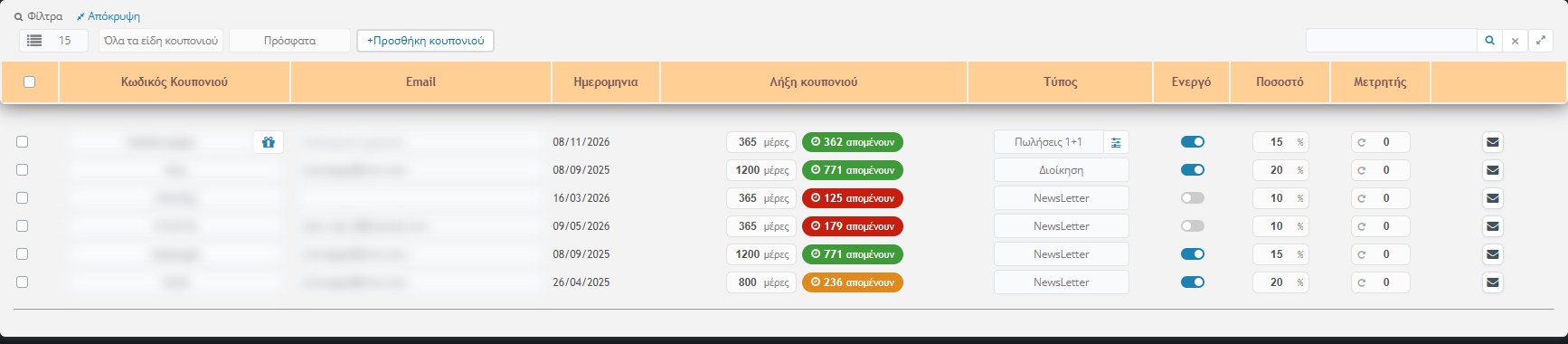
The list
Each row is a coupon. At the top of the page it states how many were found and above the table you have the filters:
- Rows per page and coupon type (all, Administration, NewsLetter, Sales 1+1, Promo Email).
- Sorting by recent, date, expiry, type, active, percentage, counter, code or email, with a button to reverse the order.
- Search in the code, the email and the date.
- +Add coupon, which opens the creation window.
The columns
- Coupon code: what the customer types. Next to it small icons may appear: a gift when the coupon has an offer rule, little people when it applies only to specific users or to B2B / retail, or an indication that it is a personal code derived from another coupon.
- Email: the recipient of the code, if it is personal. For coupons that can be given to selected people, an empty field reads “Selected users” and clicking it opens a list for choosing the users with search.
- Date: when it was created.
- Coupon expiry: how many days it is valid and how many remain. The colour of the indicator shows the status: green while the coupon is new, orange when half the days have passed, red in the last 15 days or when it has expired. Hover over it to see the expiry date.
- Type: the kind of coupon. When it is “Sales 1+1”, next to it there is a button for the offer rule.
- Active: a switch that turns the coupon on or off.
- Percentage: the discount in %.
- Counter: how many times it has been used. You can also change it manually.
Row actions
- Save: saves the changes of the row. As soon as you change something, the row is selected automatically and is also saved with the header’s save.
- Send by email (envelope): sends the code to the address of the row.
- Personal codes: for a “selected users” coupon without a rule, a button appears that creates a separate code for each user who doesn’t already have one and sends it to their email.
- Delete: confirmation is requested.
Actions on many coupons
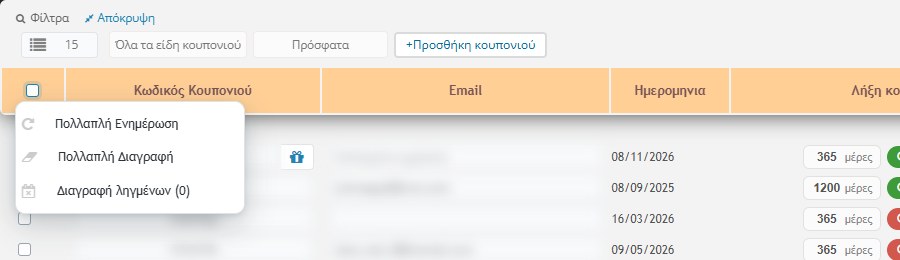
- Multiple Update: saves all the selected rows.
- Multiple delete: deletes the selected coupons.
- Delete expired (N): deletes all the coupons that have expired. N shows how many there are. Confirmation is requested.
Creating a coupon
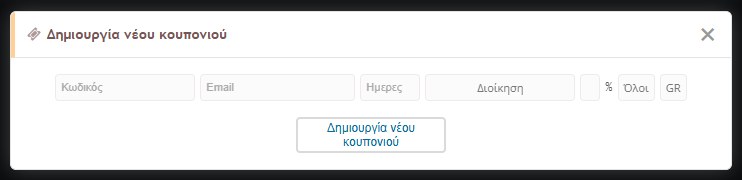
With +Add coupon a window opens with the following fields:
- Code: it is required. Without a code a warning appears.
- Email: optional, if the coupon is personal.
- Days: for how many days it is valid.
- Type: Administration, NewsLetter, Sales 1+1 or Promo Email.
- Percentage: the discount in %.
- Applies to: everyone, selected users, B2B only or retail only.
- Language: the language of the email that will be sent with the code.
The new coupon is created active, with a counter of 0.
Offer rule (Sales 1+1)
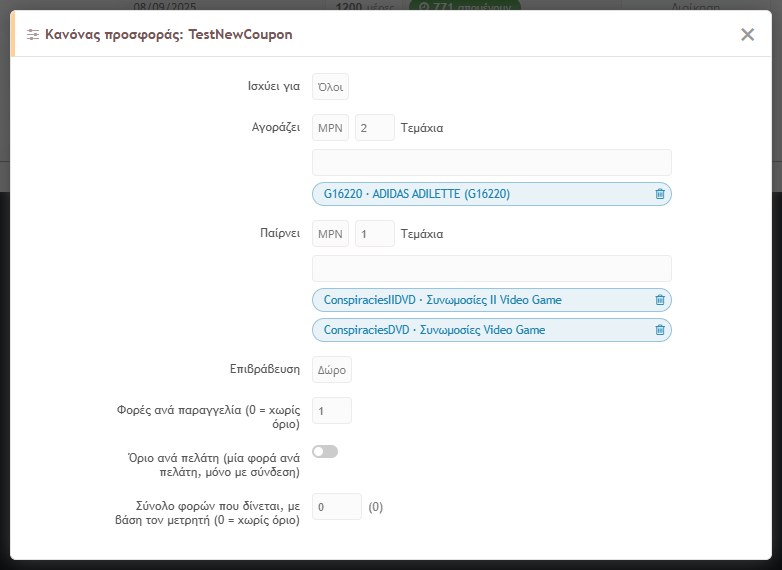
In the “Sales 1+1” type the coupon does not give a simple discount on the whole basket. It gives a reward when the customer buys specific products. The button in the “Type” column opens the window where you define it:
- Applies to: everyone, selected users, B2B or retail.
- Buys (master): what the customer must buy: a product category or MPN, and how many pieces. You choose the products with search and they appear as tags with a bin to remove them.
- Gets (slave): on which product the reward is given: the same product, another category or another MPN, and for how many pieces.
- Reward: a percentage (the coupon’s %), a gift (the product becomes free) or a fixed price.
- Times per order: how many times it can be given in one order (0 = no limit).
- Limit per customer: once per customer, only for logged-in users.
- Total times it is given: a limit based on the counter. When it reaches it, the offer stops (0 = no limit).
How it is applied: the discount falls only on the pieces that “paired up” and is not combined with another coupon. If you set a rule on a coupon that is not of the “Sales 1+1” type, a warning icon appears, because the rule will not work.
Offers per user
When there are “selected users” coupons, the Users list shows an icon with switches for each user. From there you give or remove offers for each user, without opening the coupon.