
Product List
The Product List is the main catalogue management screen. It is in the Products menu and shows all the store’s products in a table, with photo, price, discount and stock. From here you search, filter, sort, open a product for editing and perform actions on many products at once.
AI tools: the product card has artificial intelligence tools that save a lot of time: AI description, Translation of the description, AI images and AI suggestion of related products. They work when the connection to ChatGPT or Claude is active in the Platform Settings. See the section “AI tools in product editing”.
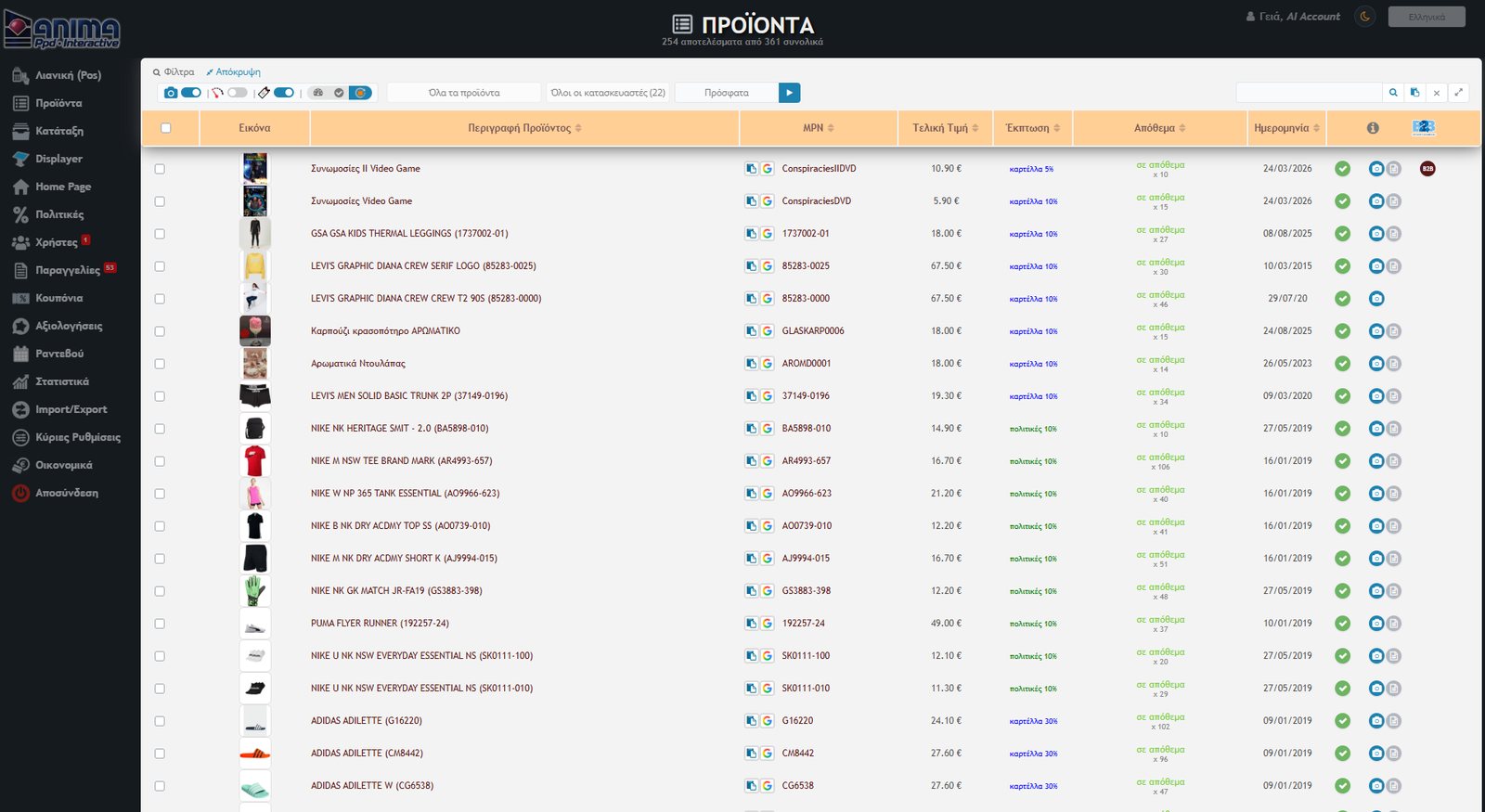
At the top of the page it always shows how many results are displayed and how many products there are in total (e.g. “254 results out of 361 in total”).
Filters and sorting
The filter bar has three drop-down menus and a group of switches. Press the Run Filters button (▶) to apply the selection. With Hide (top left) you hide the filter bar when you want more space and bring it back with Filters.
- Category: “all products” or a category / subcategory of the store.
- Manufacturer: “All manufacturers” or a specific one. The list shows only those that actually exist in your products, with their number.
- Sorting: Recent, Date, Sales, Stock, Visits, Price, Alphabetical, Season year, Manufacturers, B2B products, Photo, Inactive, Alias, Texts and Modification date. Next to it there is a button to reverse the order. You can also sort by clicking a column title; a second click reverses the order.
The switches
- Photo preview: shows or hides the product photos.
- Products with stock only: hides those with no quantity.
- Discount preview: calculates and shows the Final Price and the discount that applies, and adds the Original Price column (without discounts).
- Three selection buttons: “all products”, “products shown in the eShop” (with photo and quantity) and “products that have quantity but no photo” (those not yet shown in the store).
Search
The search field (top right) searches with partial matching: a piece of the word you are looking for is enough. You can search by:
- ID, MPN or barcode
- product description
- manufacturer
- list (category)
- season, e.g.
FW2018orSS2019
Two special symbols: with ~ you limit the number of records (e.g. ~240 shows 240 records) and with * all are displayed. The ✖ button clears the search. The list shows products only after you run a search or filters, so start with * if you want to see the whole catalogue.
Next to the search there is also the Maximise button (⤢): it hides the BE’s menu and top bar so the table takes up the whole screen, and remembers your choice.
Multiple search
The clipboard icon opens a window where you paste a list of MPNs or barcodes, separated by Enter or comma. Here the matching is exact: it finds exactly those codes. If you write {}, the products that have an empty barcode are displayed.
The table columns
- Image: a thumbnail of the product (with a click a preview opens). It appears when the “Photo preview” switch is on. If the product has no photo, a “no photo” icon is shown.
- Product Description: the product’s title, which also works as a link to editing.
- MPN: the product code, with a button to copy to the clipboard and a button to search on Google.
- Category: the product’s category. It appears when the results are fewer than 51.
- Price: without the discount preview the product’s Original Price is shown. With the discount preview on, the Final Price and the Discount appear. Next to the discount it states where it comes from: policies (from the pricing Policies), card (set on the product itself) or general (general policies).
- Sales / Visits: appears when you sort by “Sales” or “Visits”.
- Stock: the sum of the quantity from all sizes: “in stock” with the number (e.g.
x 58) or “unavailable”. - Date: the product’s registration date. When you sort by “Mod. Date”, the date of the last modification is shown instead.
- Status icons: a row of small icons that show the product’s status at a glance. If you hover over them, a detailed list appears.
The status icons
- Green ✓: the product is displayed in the store (and in Skroutz). This happens when it is active, has stock and has a photo.
- Power icon (red): the product is inactive.
- File / box icon: the product has no stock.
- Camera: blue when the product has a photo, red when it doesn’t.
- Document (grey): it has a description text.
- Arrows ⇄: the product has an MPN alias set (MPN change).
- Red B2B: the product is published in B2B.
Actions on one product
In each row there are the following actions:
- Edit: opens the product card (described below).
- Copy: creates a new product based on the existing one. It is handy when you have many similar products.
- Delete: deletes the product.
- Print: prints the product.
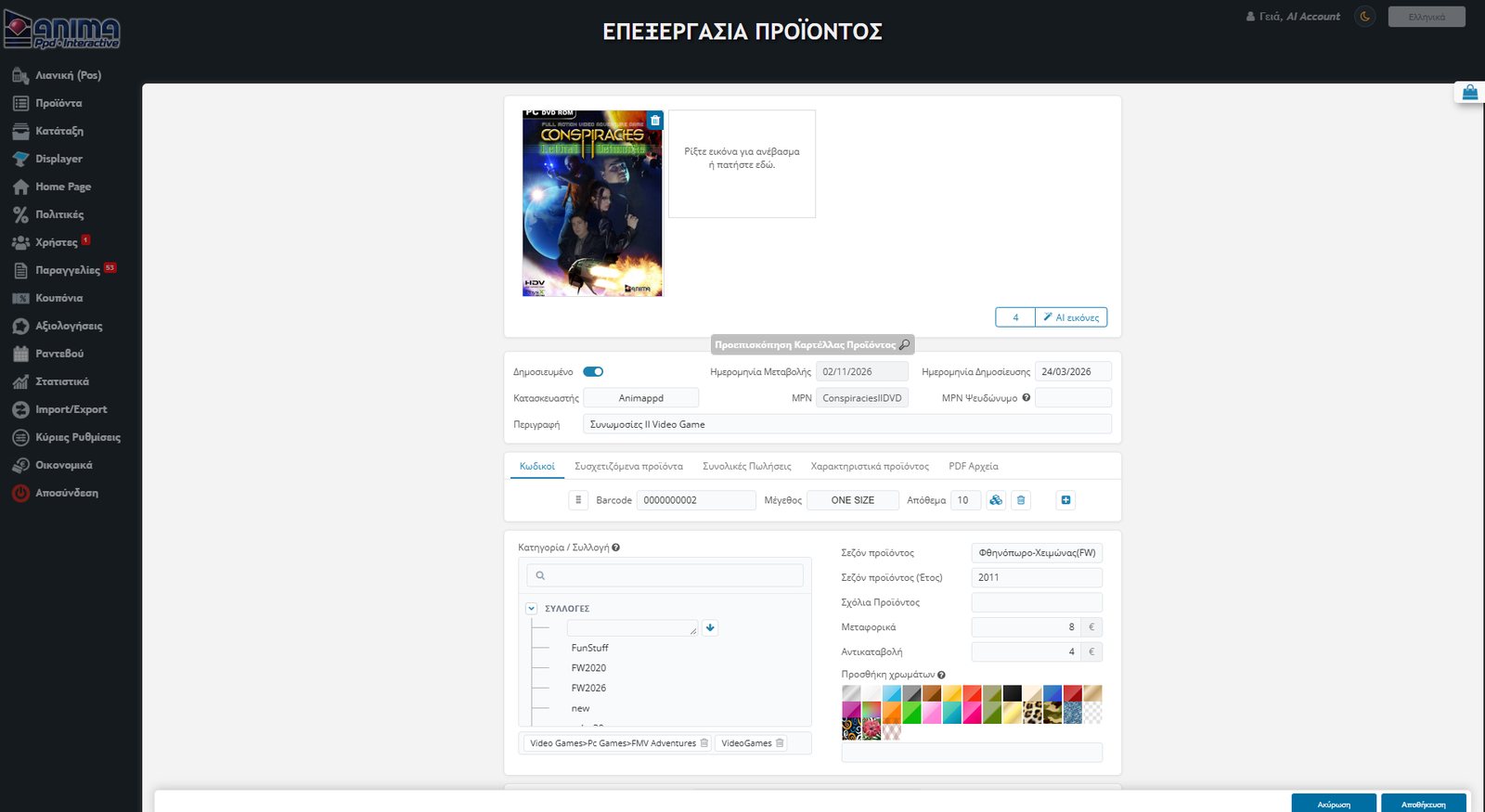
The product card
In the edit card (and in adding a new product) there are:
- Photos: you upload images by dragging them into the box or clicking on it, and you can delete an image with the bin icon on it.
- Basic details: a Published switch, modification and publication dates, Manufacturer, MPN, MPN Alias and the product’s Description (title).
- Tabs: Codes (barcode, size and stock per row), Related products, Total Sales, Product attributes and PDF Files.
- Category / Collection: you choose from the category tree, with search.
- Season, comments, shipping, cash on delivery and colours: the corresponding fields to the right of the category.
- Description – Details: a text editor with formatting, links, images, videos and the ability for a second language.
At the bottom of the screen there are always the Cancel and Save buttons.
Actions on many products
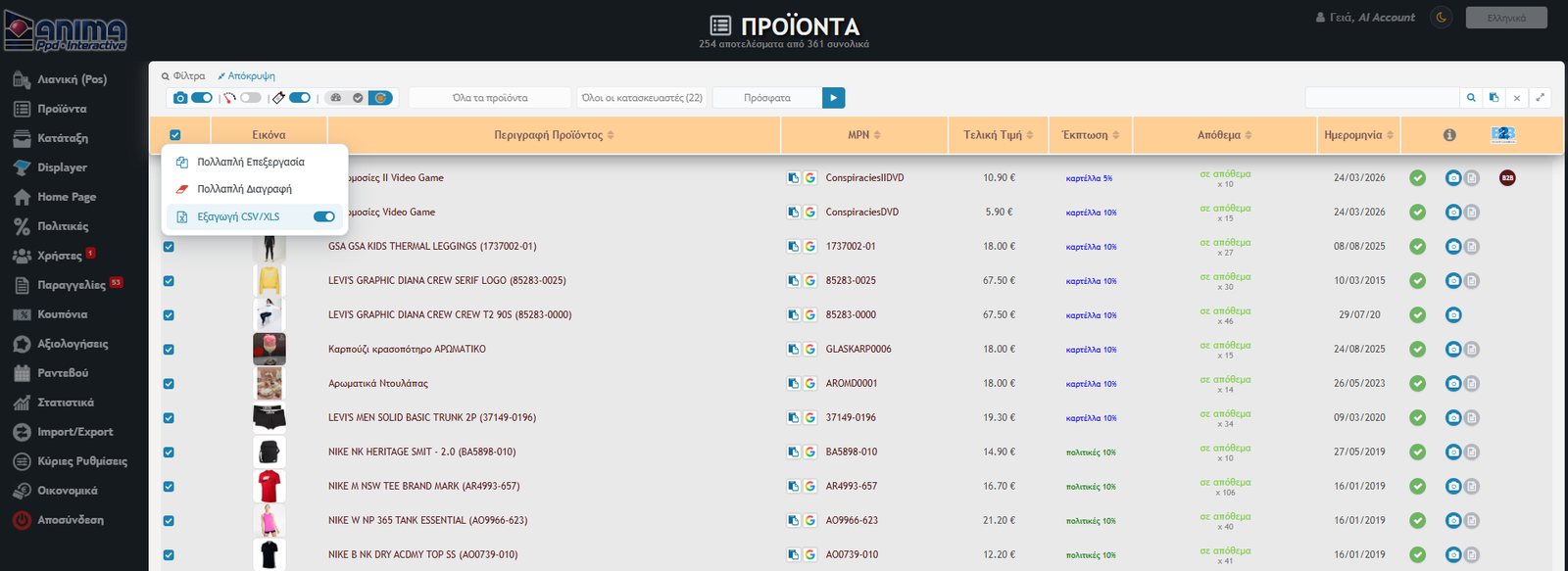
Tick the products you want (or the header checkbox for all) and open the options menu next to it:
- Multiple Edit: changes the properties of the selected products in bulk.
- Multiple Delete: permanently deletes all the selected products.
- CSV/XLS Export: exports the product codes to a file.
Caution: multiple edit and multiple delete cannot be undone. Check your selection before you continue.

AI tools in product editing
When AI is active, the product card (Edit or Add) has tools that save time in filling in the catalogue. The tools appear only when AI is enabled in the Platform Settings: an API key and the corresponding switch are needed, for ChatGPT or for Claude (one turns off the other).
AI description
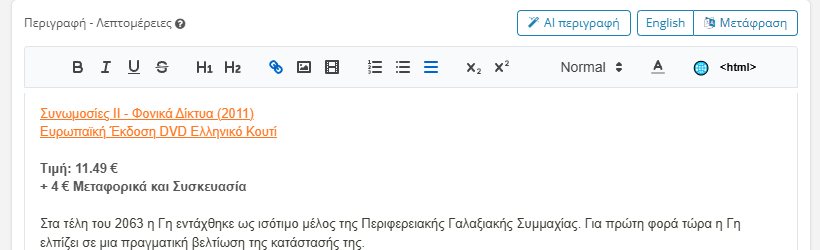
The AI searches for the product on the internet, first at the manufacturer, and writes a description in Greek, based on the MPN, the manufacturer and the title you have already filled in. It also takes into account the colour and the product comments you have entered. The description is added to the product’s text and below the sources used are shown. If you haven’t filled in an MPN or description first, a relevant message appears.
Translate
Translates the Greek description into the language you choose (the languages are defined in the “AI” dropdown list) and adds it as the second language of the text, keeping the formatting. If a second language already exists, it asks whether you want the translation added at the end.
AI images
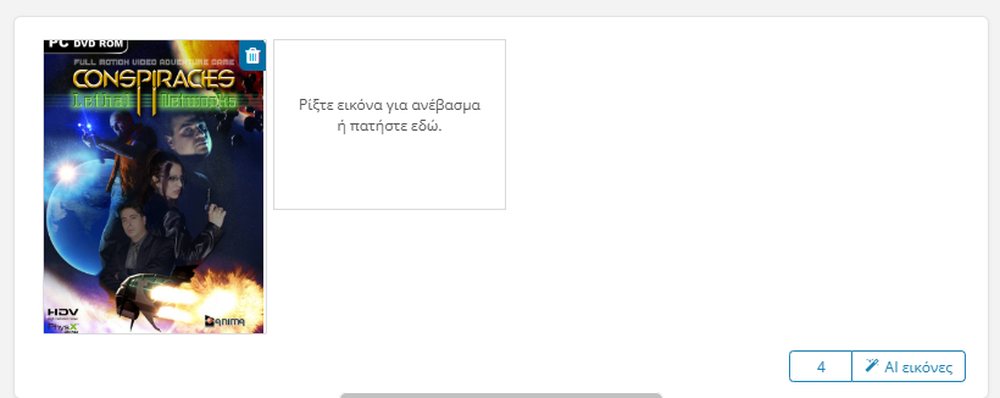
Finds images of the product on the internet, first the manufacturer’s, and uploads them as if you had uploaded them yourself. You choose how many images you want. The images are automatically converted to JPEG (up to 1200px), very small ones (below 300×300) are excluded and those with a white or transparent background are preferred.
AI suggestion (related products)
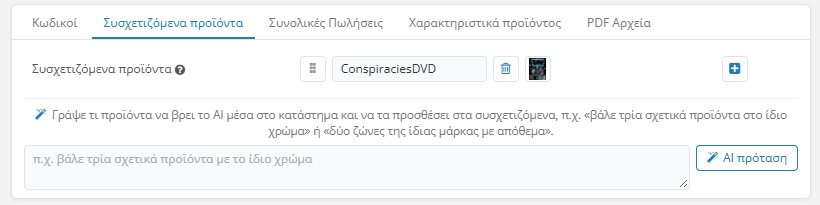
You write in plain words which products you want suggested, e.g. “put three related products in the same colour” or “two belts of the same brand with stock”. The AI chooses only from your own store’s products and adds them to the related ones. It does not suggest the product itself nor those that are already related.
Tip: the AI gives a first draft. Read the description and look at the images before you publish the product.
Product limit
The number of products depends on your package. If you exceed it, a message appears to contact your administrator. See the limits per package on the Pricing page.