
Returns
Returns is the tool for customers’ requests to exchange and return products. Each record concerns an order and gathers in one place the products being returned, the products they will be exchanged with, the extra products, the shipping costs and the financial balance (who owes whom and how much). You find them in the menu Orders → Returns.
- The list
- Status and type of a record
- The window of a return
- Customer details and bank details
- What happens with the stock
- Filters and search
- Actions on many records
The list

At the top it states how many entries there are (e.g. “4 Entries, 4 results”). Each row is a record and shows:
- Selection checkbox and arrow ▸: the checkbox selects the record for actions on many, and the arrow (or a click on the whole row) opens the return window. The ▸ in the header closes all open windows.
- ID: the number of the order being exchanged or returned (the same as the order’s).
- Date: when the order was placed.
- Exchange Products: the products being exchanged or returned.
- Full name: of the customer. With a click their details open.
- Payment, Courier, Amount: the payment method and the courier of the order and the amount that concerns the refund to the customer. The titles of these columns sort with a click.
- Status: three icons that show at which step the record is (see below).
- Record type: four small icons at the end of the row, where the blue shows whether the record is an exchange, return, cancellation or refusal.
Status and type of a record
The return status
The “Status” column has three buttons, which show the steps in order (blue is the current step):
- Submitted by customer: the customer sent the exchange or return request.
- We received the product from the customer: the product arrived at the store.
- Completion (truck): the process ends. An email is sent to the customer and the record is removed from the list. Before it happens, confirmation is requested, because the action cannot be undone.
The record type
At the end of the row there are four icons (and the same in the header) for the type, each with the date of the last change in its tooltip: Product exchange, Product return, Product cancellation and Product refusal. You choose one of them and save with the row’s floppy disk.
The window of a return
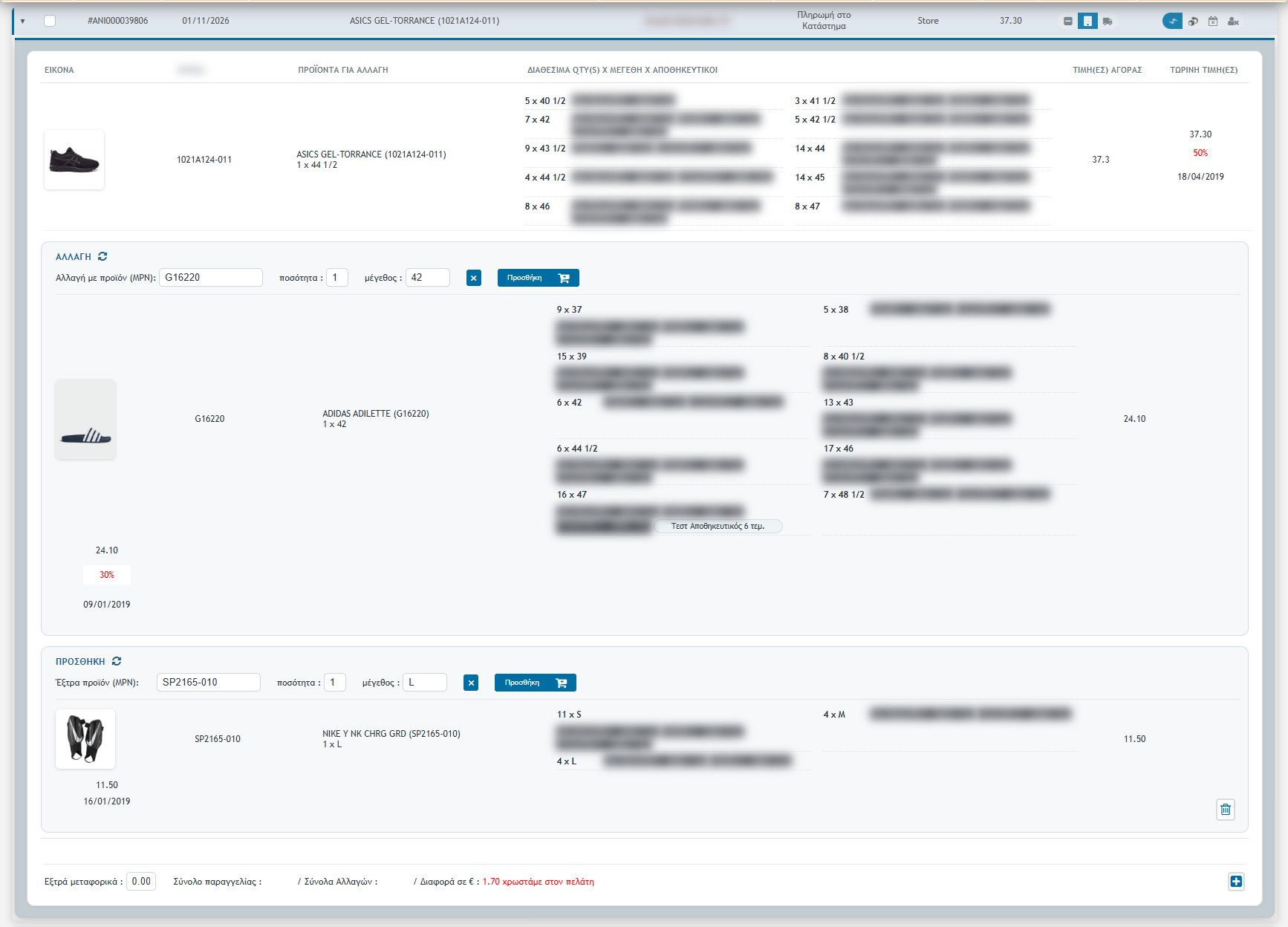
The window has three sections and a totals row.
1. The products to be exchanged
The table at the top shows the products of the original order that are being returned: image, MPN, product (with quantity and size), the available pieces per size and per storage location, the purchase price and the current price (with the discount and date). This way you immediately see what exists today in the stores.
2. Exchange
For the customer to exchange the product for another, you write in the “Exchange with product (MPN)” field the code and the system suggests products with smart search. You fill in quantity and size and below the exchange product appears with photo, price and the available pieces per store, so you can check that the size exists.
- Add (basket): adds the exchange product to the basket and completes the purchase in the eShop.
- ✖: clears the field’s data.
3. Add (extra product)
If the customer wants an additional product, you write it in “Extra product (MPN)” in the same way. The bin on the right removes the extra product.
The totals
At the bottom the money is calculated:
- Extra shipping: a field where you write any shipping costs of the exchange.
- Order total (the original value), Exchange Totals (the products you give in their place) and Difference in €: the resulting amount. It also states who owes it, e.g. “1.70 we owe the customer” in red when you return money.
- The + at the bottom right saves the record’s new data.
Customer details and bank details
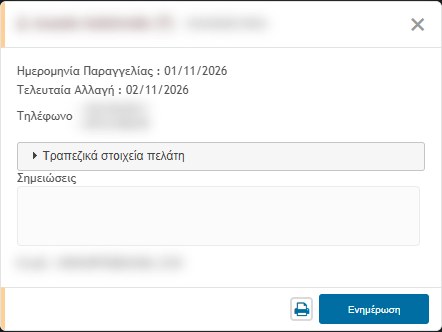
With a click on the customer’s name a window opens with the order date, the last change, the phones and the email. There is also the expandable field “Customer bank details”, which you need when the refund is made by bank transfer, and a Notes field. The printer button prints the details and Update saves the changes.
Personal data: bank details are sensitive. Open them only when you need them and be careful where you save or print.
What happens with the stock
- When you receive the return or complete the exchange, the stock is updated automatically, and the reverse if you step back.
- When the record is cancelled (Product Cancellation or Refusal), the pieces that have not already come back return to stock, as with cancellation from the Orders. There is no double movement.
- With Atlantis (ERP) active a document can also be sent to the ERP. The BE warns that this cannot be cancelled except by deleting it from the ERP.
Filters and search
- Rows per page (5 to 30).
- Statuses: In progress, Cancelled, Delivered, Refusal of Delivery (the order’s status).
- Return Status: Submission, Receipt or Completed.
- Payment and Courier: by payment method and by courier.
- Sorting: Recent, ID, Date or Last Modification. And with a click on a column title.
- Search: by order number (with # in front), date, full name, email, MPN, product name, phone or mobile. The ✖ clears the search.
Actions on many records
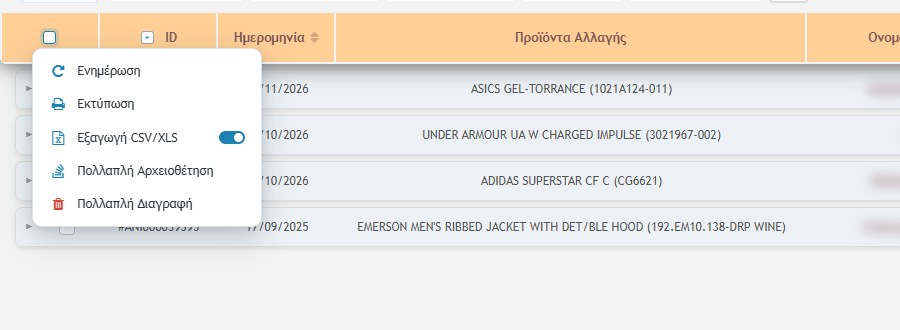
You tick records and choose:
- Update: saves the records that are ticked.
- Print: prints the ticked exchanges / returns, also depending on the filters.
- CSV/XLS Export: exports the selected records (the switch next to it chooses the format).
- Multiple Archiving: sends an email with all the details to the archiving address and permanently deletes the selected records. It cannot be undone.
- Multiple Delete: permanently deletes the selected records without an email. It cannot be undone.
Archiving email
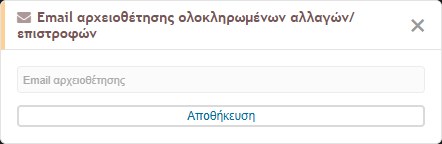
The gears icon in the filter bar opens the “Archiving email for completed exchanges / returns” window. The address you write there receives an email with all the details of each completed return or exchange. After sending, the record is deleted from the list. An empty field means no archiving.
Before you complete a return
- Check that the product arrived and that the exchange details and the totals are correct.
- If the refund is made by bank transfer, open the customer’s details for the account.
- Completion, Archiving and Deletion cannot be undone. First make sure that whatever you need has been saved.