
Add Product
Add Product is the form for registering a new product in the store’s catalogue. You find it in the menu Products → Add Product. In one screen you fill in photos, details, barcode and stock, categories, prices and description.
AI tools: the form has artificial intelligence tools that save a lot of time: AI description, Translate, AI images and AI suggestion of related products. They work when the connection to ChatGPT or Claude is active in the Platform Settings. See the section “AI tools in adding”.
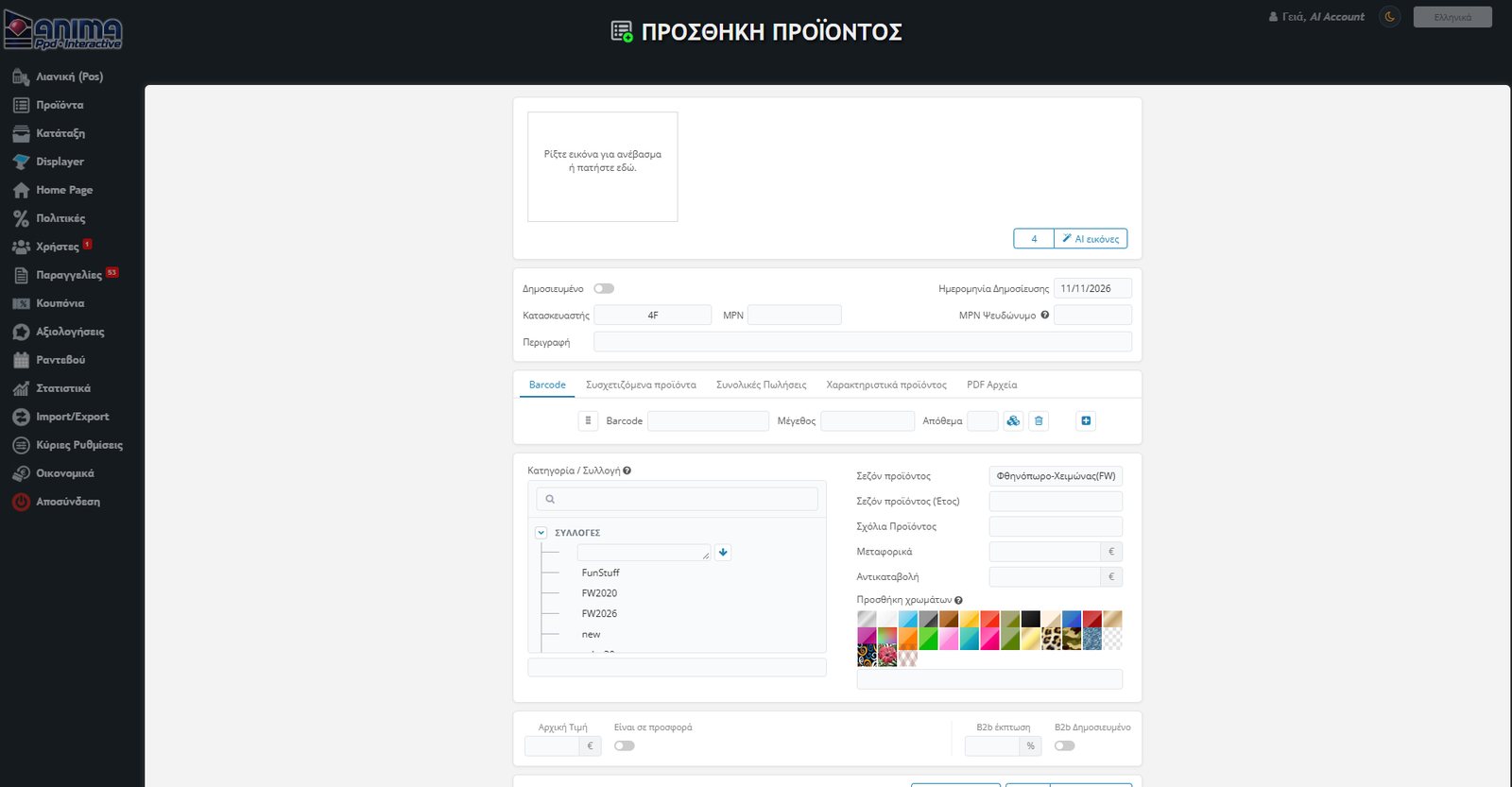
Before you start
- Product limit: each package has a maximum number of products. If you have reached it, the form does not open; a message appears to contact your administrator and you return to the list. See the limits on the Pricing page.
- Initial values: the new product starts unpublished and with today’s publication date.
1. Photos
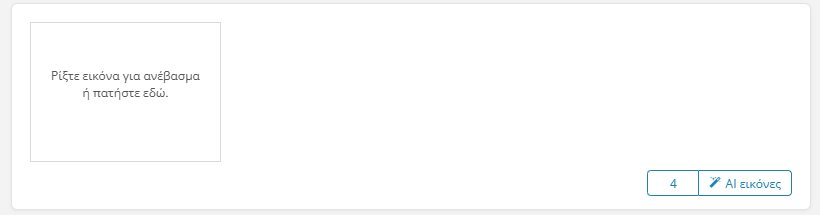
Drag an image into the box or click on it to choose it from your computer. The first photo is the main image of the product. You can remove an image with the bin icon on it. If you don’t have photos ready, the AI images button finds them for you (more at the end).
2. Basic details
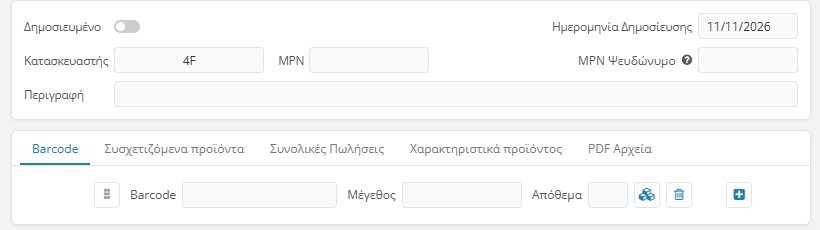
- Published: the switch that activates the product. An inactive product does not appear in the store.
- Publication Date: the date the product was registered (pre-filled with today’s).
- Manufacturer: the brand / manufacturer of the product.
- MPN: the product code; it is the main field and is marked as required. It must be unique: if it already exists in the database, a warning appears and the field is cleared.
- MPN Alias: an optional alternative code. With the help icon you see that it defines which MPN the product is finally exported with to platforms such as Skroutz and BestPrice. It is also checked for duplicates.
- Description: the title of the product, as it will appear in the list and in the store.
3. Barcode, size and stock
In the Barcode tab you define one or more variations of the product (e.g. per size). Each row has Barcode, Size and Stock (quantity).
- With the + button you add a new row (new Barcode, Size, Stock), e.g. for each size. With the bin icon you remove a row.
- Each Barcode must be unique: if it already exists, a warning appears and the field is cleared.
- The product’s stock results as the sum of the stock of all rows.
- If you use the Displayer and have permission for it, next to each row there is a Stock per warehouse button.
4. Category, season, colours and shipping costs
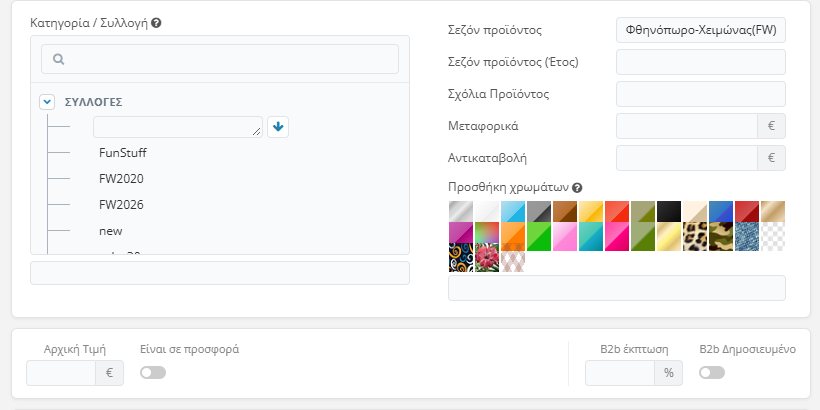
- Category / Collection: you choose from the tree, with a search field. You can select multiple categories or collections for the same product.
- Product season and Year: e.g. Autumn-Winter (FW) and the year. With these you can search in the list (e.g.
FW2018). - Product Comments: a free comments field.
- Shipping and Cash on Delivery: the amounts (in €) for the product.
- Add colours: you click the colours that fit and they go into the field below. You can add many colours.
5. Prices and offers
Below the categories is the price area:
- Original Price: the product’s price, without discounts.
- Is on offer: the switch opens two fields: Discounted Price and Discount %. When you fill in one, the other is calculated automatically.
- B2b discount: a discount percentage for B2B customers. If you leave it empty, each user’s overall B2B discount is applied.
- B2b Published: shows the product to B2B customers.
Tip: if you put a value lower than 0.01% in the product’s discount percentage, the product is excluded from the store’s discount policies.
6. Description – Details
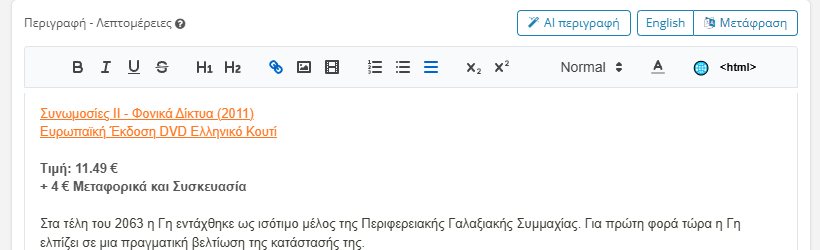
At the bottom of the form there is the text editor for the product’s full description: formatting, links, images, videos and lists.
- Second language: at the end of the Greek description put the marker
<LANG>and write the text of the next language below it. - AI description and Translate: the buttons at the top right (see below).
7. The other tabs
In the same area as the Barcode there are other tabs:
Related products
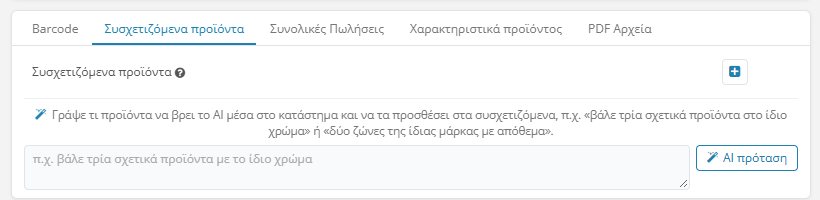
Add products that go with the new one (e.g. trousers with a shirt). With the + you put the MPN or search by name or manufacturer. You can also ask the AI to choose them (AI suggestion).
Total Sales
Shows sales and visit statistics of the product. For a new product it is empty.
Product attributes

Activate the attributes that apply to the product; these appear on the product page in the store. The list of attributes is defined from the menu Classification → Attributes.
PDF Files
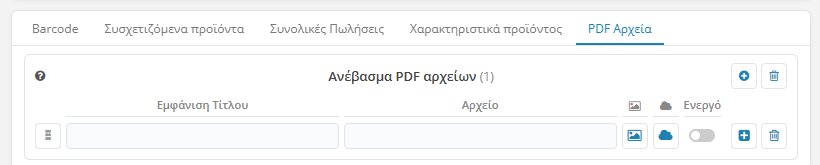
Attach whatever PDFs you need (e.g. instructions for use, certificates). For each file you set the title that will be shown, the file itself (the row has upload options, and cloud) and with the Active switch whether it will be displayed. With the + you add a new row and with the bin you remove it.
AI tools in adding
If AI is active in the Platform Settings, the form has four tools that save time:
- AI images: finds images of the product on the internet (first from the manufacturer) and uploads them. You choose how many.
- AI description: writes a description in Greek, based on the MPN, the manufacturer and the title. Fill in the MPN or the description first.
- Translate: adds the description in a second language as well.
- AI suggestion: chooses related products from your catalogue.
See in detail how each one works in the Products List guide.
Saving
At the bottom of the screen there are always the Cancel and Save buttons. When you press Save:
- the product automatically gets the next available ID,
- the photos, the text and all the details are saved, and
- you return to the Products List, with the new product highlighted.
For the new product to appear in the store, it must be published, have stock and a photo. The Product Store Updater (Products menu) copies the products with quantity to the store.
Copy instead of new: if you want a product similar to one you already have, use the Copy action in the list. It opens the same form, pre-filled, with the title “(COPY)”, empty MPN and today’s date.