
Displayer: Internal Handling and Product Log
The Displayer is the tool for the staff of stores / warehouses: you quickly find a product, see how many pieces exist in each store and request a transfer from one store to another. The menu has two management pages that work together with it:
- Internal Handling: the requests to transfer products between stores.
- Product Log: the quantities that were not found in the warehouse.
Product search, cards, sizes and stock are described in detail in the Displayer article. Here are the two management pages that work with it.
Internal Handling
Internal Handling is the list of all the transfer requests of products from store to store. Every time someone presses the little truck on a store inside the Displayer, a row is created here. You find it in the menu Displayer → Internal Handling.
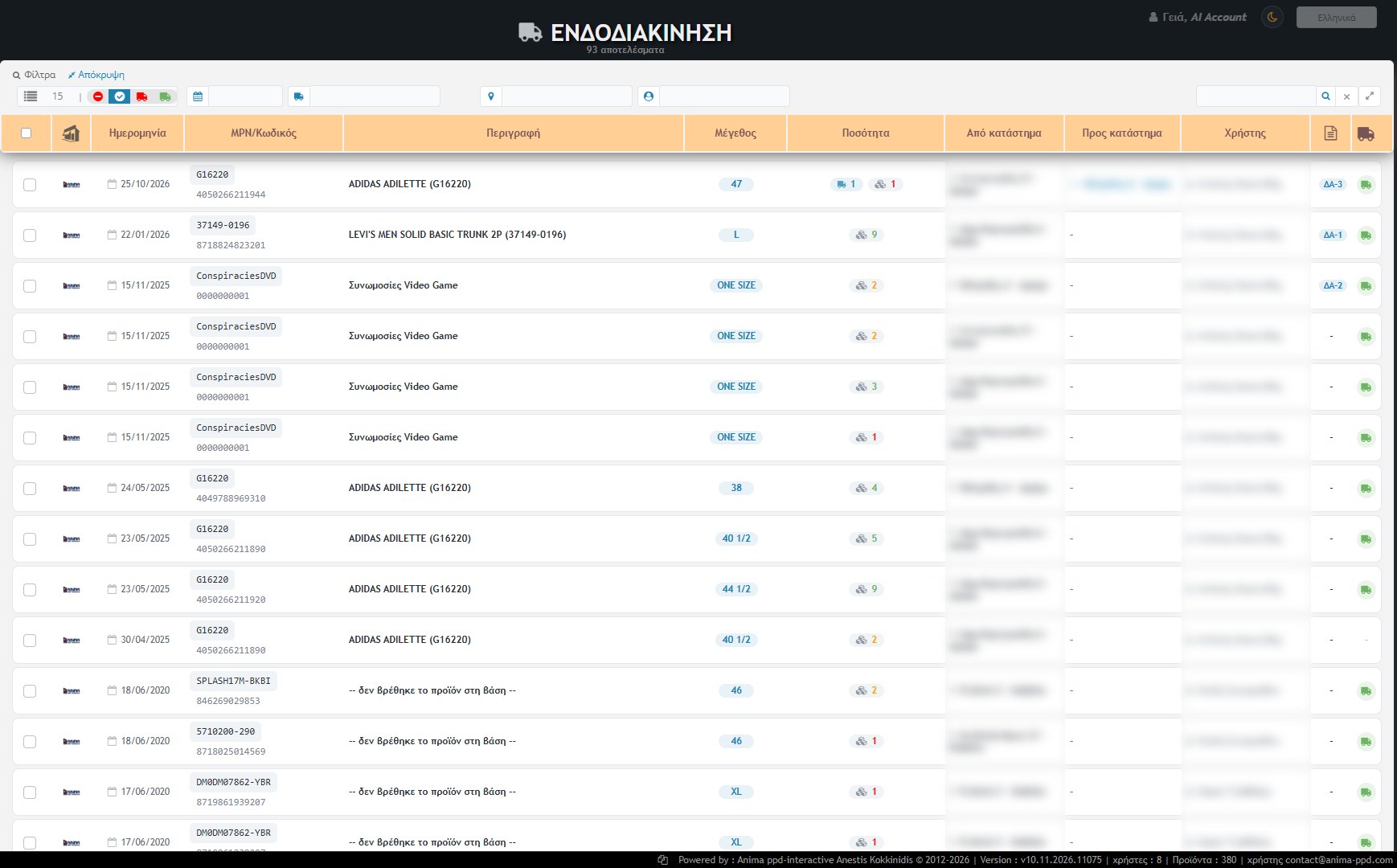
At the top the number of results is stated (here “93 results”). Each row shows:
- Store icon and the Date of the request.
- MPN / Code of the product, with the barcode below it. In the example it is the ADIDAS ADILETTE (G16220), with a different barcode for each size. If the product no longer exists in the database, it says “product not found in the Database”.
- Description and the Size that was requested (e.g. 47, 40 1/2).
- Quantity: two indications. The little truck shows how many pieces were requested, and the little cubes how many the store that has them holds at that moment.
- From store (which has the stock) and To store (which requested it, with an arrow).
- The User who made the request.
- Delivery note (e.g. ΔΑ-3), when it has been issued, and in the last column the status truck.
Filters and search

- Rows per page: from 5 to 30.
- Four status icons: ⛔ those with a handling refusal, ✔ all requests, red truck those not yet handled and green truck whatever was handled.
- Date: shows the requests of one day.
- Sending store (truck): the store that must send products. Receiving store (pin): the store that must receive them.
- User: whoever made the request.
- Search: by barcode, MPN or size. The ✖ clears it and the arrow widens the page.
How a request progresses
- Request: the store that needs the product makes it from the Displayer.
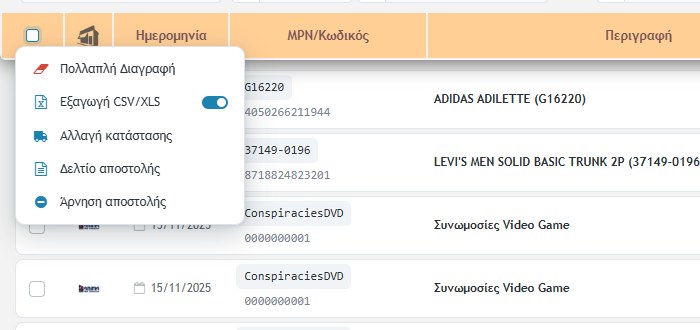
- Change status (green truck): the person in charge of the store that has the product agrees to send it and marks the rows as sent. The same action marks them again as not sent.
- Delivery note: when the POS is active with a document series, from the selected rows (which must have a green truck) one delivery note per sending store is issued and it also transfers the stock. The note appears in the row (e.g. ΔΑ-3) and by clicking it is printed again as a copy. If you choose rows without a green truck, the message “Select rows with a green truck, without a delivery note” appears.
- Refuse shipment (⛔): if the store cannot send, it marks the row as a refusal.
Without POS and ERP: the green truck by itself transfers the stock from one store to the other (the pieces that were requested), and undoing it returns it.
Other actions
- CSV/XLS Export of the selected rows. The switch next to it chooses the format.
- Multiple Delete of rows. It cannot be undone and confirmation is requested.
Product Log
The Product Log is the list of the quantities that were not found in the warehouse, that is, products with a problematic (negative) stock. You find it in the menu Displayer → Product Log.

Rows enter from two places:
- from the Orders, when a product is not found in the stock (the order’s little gear),
- from the Displayer, when it shows a negative quantity and the user reports it.
Each row shows:
- The product’s Image,
- MPN / Code and the barcode, with a button that copies it to the clipboard,
- Description and Size,
- Quantity per store: small green “badges” with the store code and the quantity at that moment (e.g. ΔΜ6 7, Φ6 7, Α21 8). Negatives appear red. When the stores are many, it shows the total and in how many there is stock. By hovering you see the full name of the store,
- the User who recorded it and the Date.
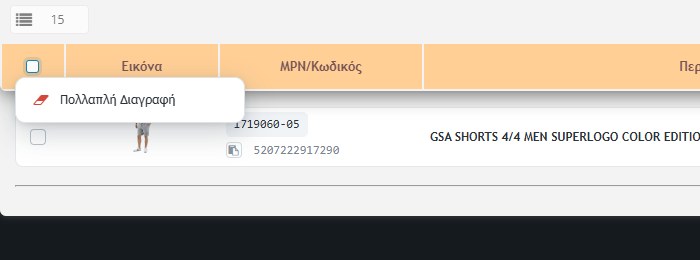
Use it as a work list: you physically check which products are missing and correct the stock (e.g. with the Inventory), so they don’t appear again. When you finish, you select the rows and Multiple Delete clears them. The search field at the top right searches by code, barcode or description.