
Displayer
The Displayer is the screen of the staff of the stores and the warehouse: you type or scan a product and instantly see what it looks like, what price it has and how many pieces exist in each size and in each store. It opens full screen and works on a computer, tablet and mobile. Here we show it with a real product, an ADIDAS ADILETTE.
AI tools: the descriptions and images of the products you see in the Displayer may have been created with the platform’s AI tools (AI description, translation, AI images with ChatGPT / Claude, see the articles Add Product and Products List). In the Displayer you see them ready, for the staff to use when serving customers.
- Finding a product
- Many results
- The product card
- Sizes and barcode
- Stock per store
- Manufacturer, description, printouts
- Bottom bar
Finding a product
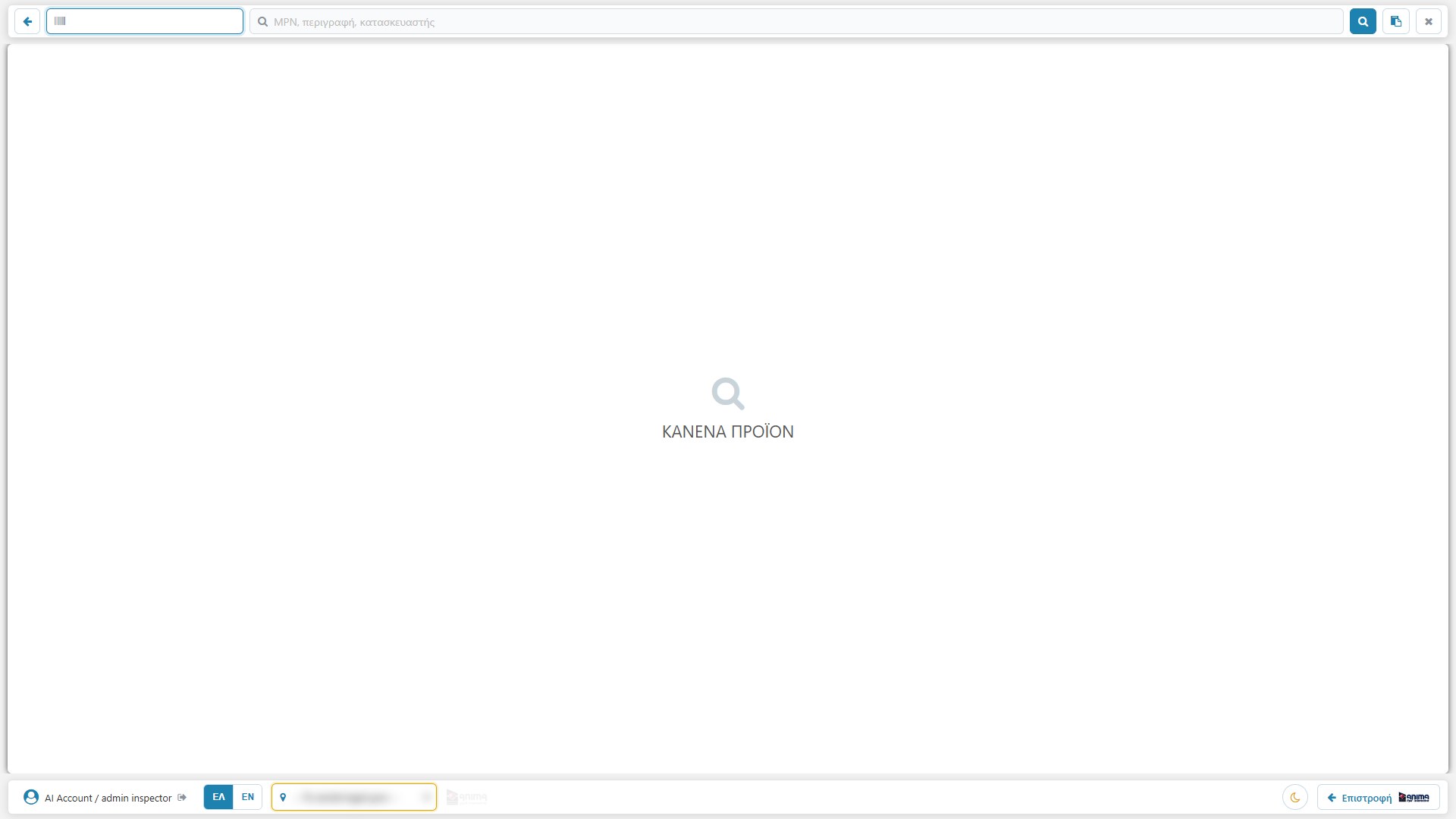
In the top bar you have all the ways of finding:
- Back arrow: returns to the previous search.
- Barcode: you scan or type the whole number. The cursor is here from the start, so the scanner works straight away.
- MPN, description or manufacturer: in the large field. Whatever you write (e.g. “adidas adilette”) is searched in all three. The magnifier button (or Enter) runs the search.
- Multiple search: the clipboard icon opens a box for a list of barcodes, separated by Enter or comma. It works with an exact match, i.e. it searches exactly the numbers you gave.
- ✖: clears whatever you wrote.
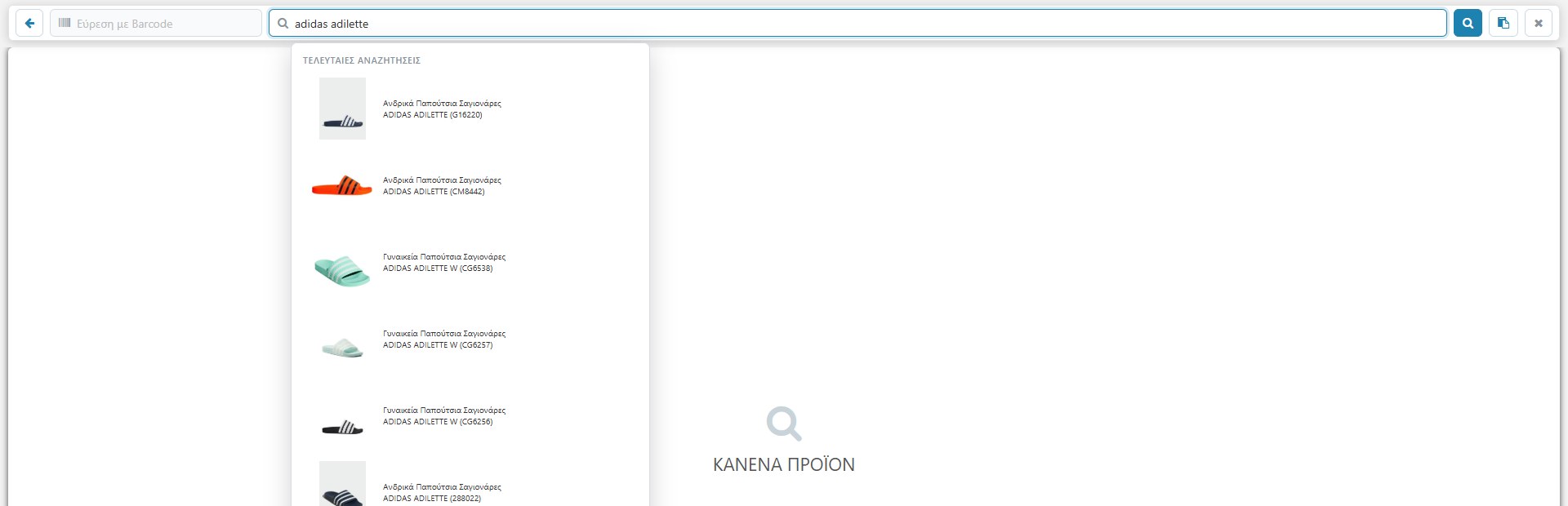
When the field is empty, the list shows your latest searches (up to 10, stored on the device). This way you quickly find again what you saw before. On mobile the list covers the screen below the top bar, so you can choose easily with your finger.
Many results
When the search finds more than one product, the “7 products” button appears in the top bar (the number changes) with arrows to go to the previous or next one. Clicking the button opens a window with all the results together.
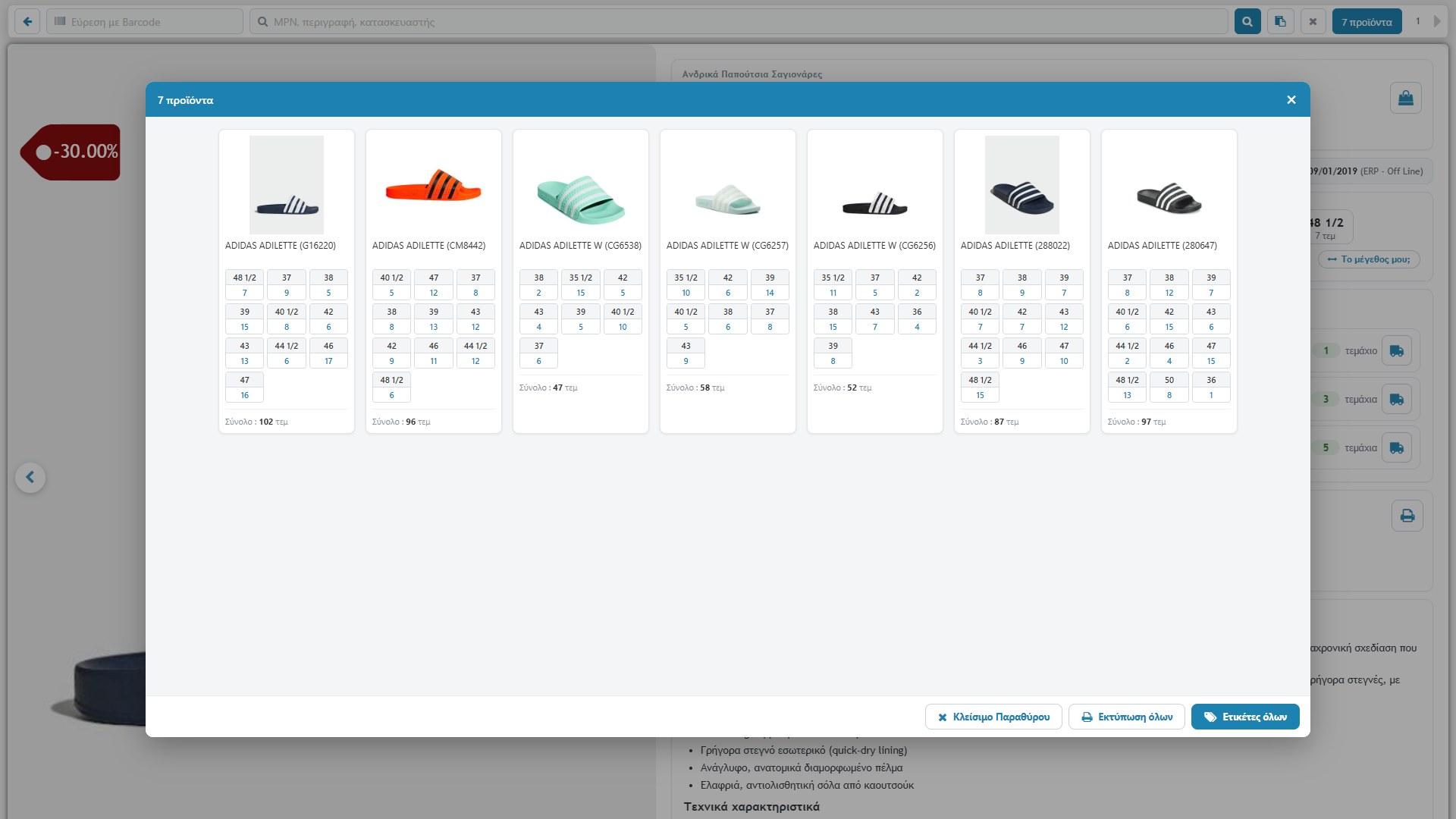
- At a glance you compare colours and availability.
- Print all: prints all the products of the group in one printout, one sheet per product.
- Labels for all: prints the barcode labels for all.
- Close Window: closes it (the ✖, Esc and a click outside the window also work).
The product card
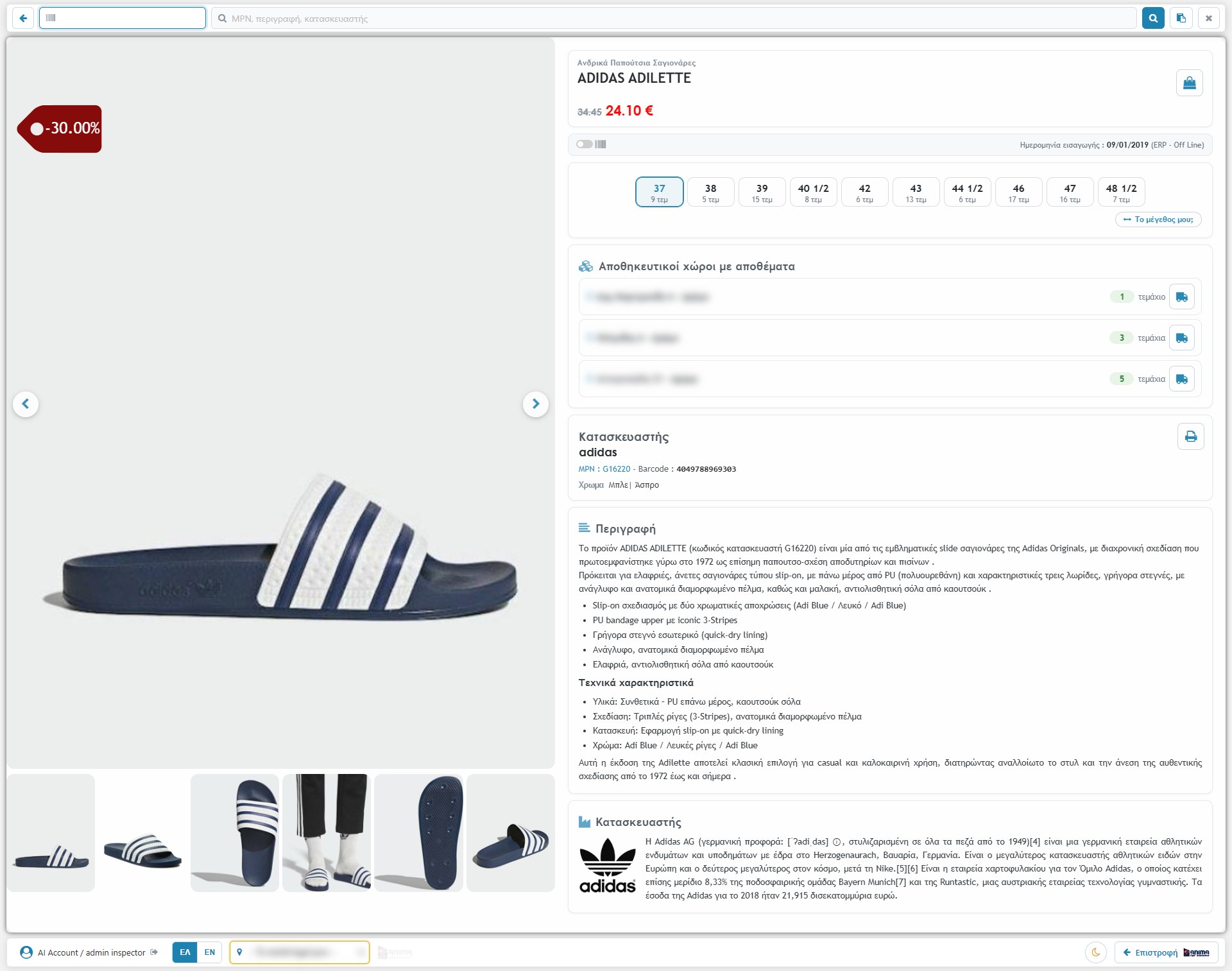
On the left are the photos: a large image with arrows and thumbnails below (if there is only one, it is simply shown). On the image, the red label (e.g. -30.00%) shows that the product has a discount. On the right, from top to bottom:
- Category and title, and below them the price. When there is a discount, the original price appears crossed out and next to it the final one in red (34.45 → 24.10 €). The final price is calculated either from the product card or from the pricing policies.
- Bag (top right): opens the product in the eShop, as the customer sees it.
- Date of entry (and date of last change) and, next to it, the indication of the stock source, e.g. ERP – Off Line when there is a connection to an ERP.
Sizes and barcode
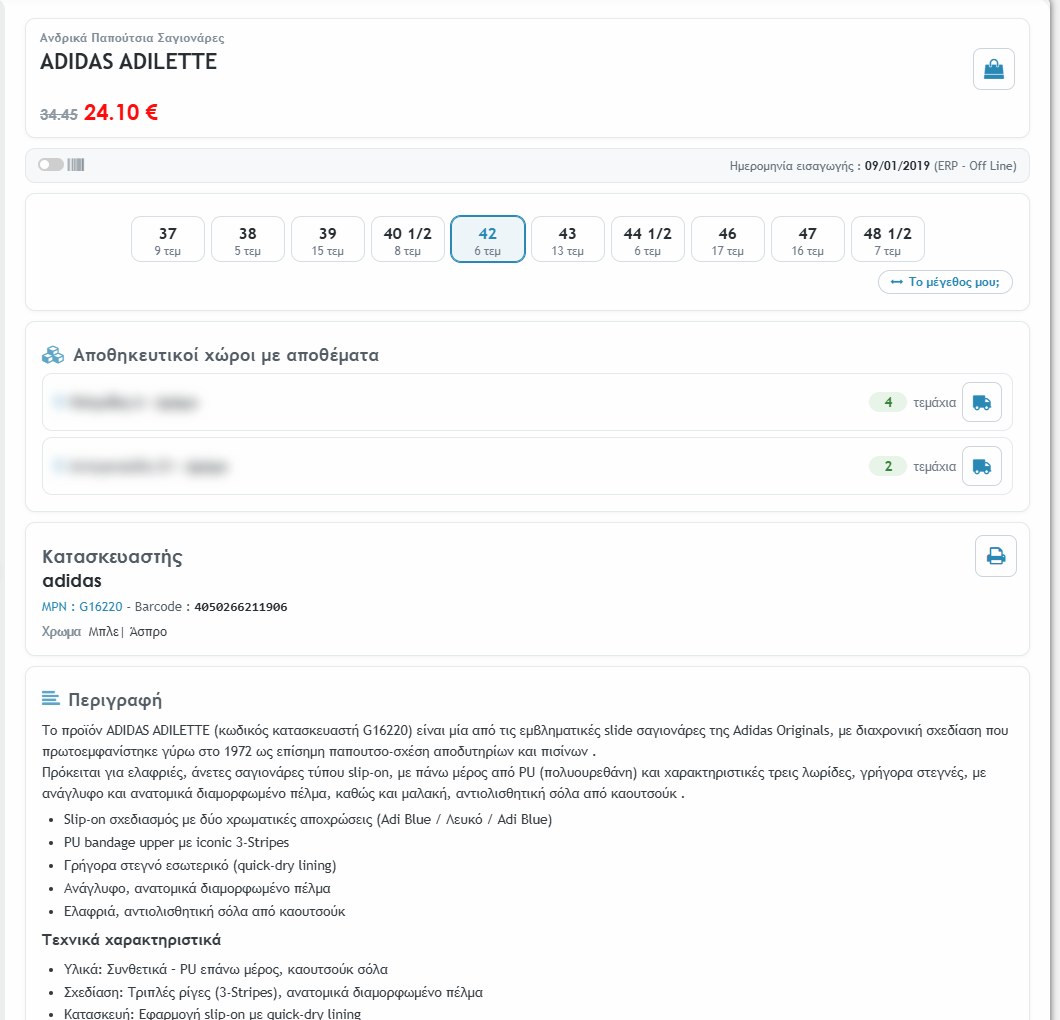
Each “tile” is a size with its total number of pieces in all stores (e.g. 42 → 6 pcs). With a click on a size:
- the storage locations below show only the pieces of that size (here 4 and 2, i.e. 6),
- the barcode of that specific size appears at the manufacturer.
Sizes with negative quantity appear red and those with zero faded. If the product has no stock at all, it says “Not in stock”. The “My size?” button opens the manufacturer’s size guide, when one has been set.
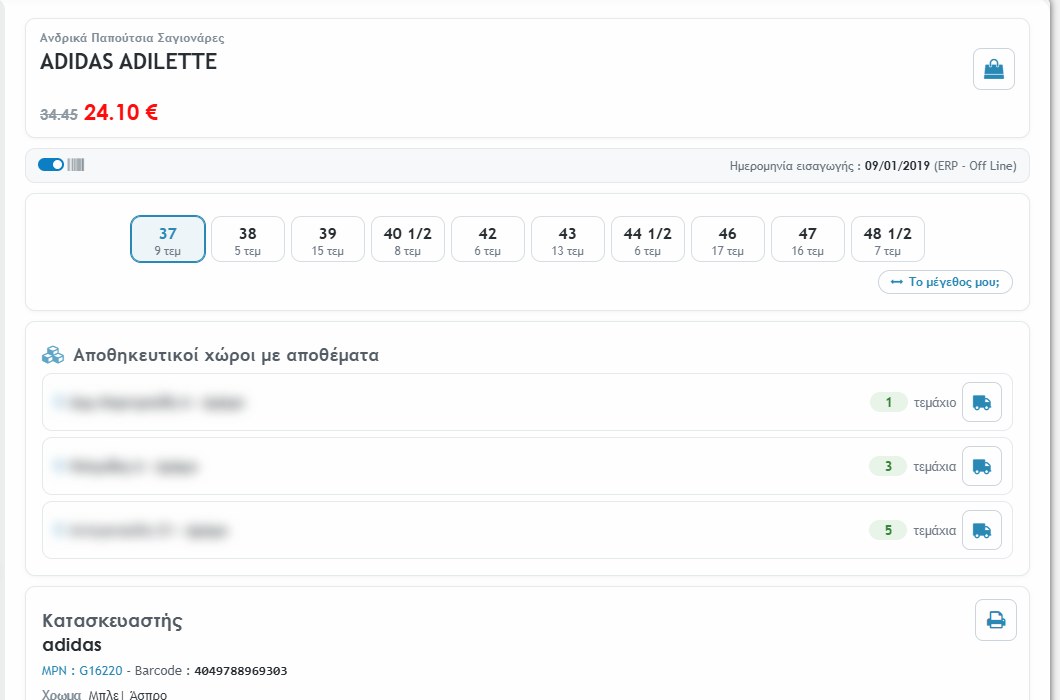
The switch (on the left in the date-of-entry row) is useful when you look for a size that has sold out and you want to see that it exists on the product.
Stock per store
In the “Storage locations with stock” section you see every store or warehouse that has pieces, with a green number and the word “piece / pieces”. When it does not exist in any store, the Displayer says so (“not available in any store”).
- Little truck: the button to the right of each store requests a transfer of the product from that store to yours. It asks “How many pieces do you request?” (from 1 up to what the store has) and the request passes to Internal Handling. If the product is already in your store, it informs “The product is already in your store”.
- Negative stock: when a quantity is negative, a link appears that records it in the Product Log (once per barcode).
- Quantity correction: entry, withdrawal or zeroing of quantity per size and store. If the ERP is active, the change is written there as well, with a transfer document.
Before you request a transfer: choose “My store” in the bottom bar. With the POS active, a transfer request cannot be made if it doesn’t know which store you are in. The choice stays on the device.
Manufacturer, description, printouts
- Manufacturer: the name (with the logo, if there is one), the MPN and the barcode of the selected size. The MPN is a link that opens the product in the management in a new window. The colour with its sample is also shown here.
- Print (printer icon): prints barcode labels for the product, in three layouts: across the whole page, in the middle of the page or top and bottom.
- Description: the full text, with the attributes and technical details, in the language you have selected (EL / EN).
- Manufacturer (text): a few words about the company, with its logo.
Bottom bar
- User and role that is logged in, with a log-out icon.
- EL / EN: changes the language of the screen and the texts.
- My store: the store where you are (the destination of the transfers you request).
- Dark / light theme: the moon changes the theme. On mobile and tablet the screen always stays light.
- Back: returns to the management platform.
For the transfer requests and the quantities that were not found, see the article Displayer: Internal Handling and Product Log.