
Import/Export: exports and connections
The Import/Export section connects the store with the “outside world”: it brings products in (Bulk Imports) and outputs your catalogue in files read by price comparison sites, marketplaces and search engines. This article covers the export and connection tools. Two tools have their own articles:
- Bulk Imports (importing products from Excel / CSV files).
- Car.gr (Car.gr XML Setup, Cargr XML Export, Cargr Control Panel).
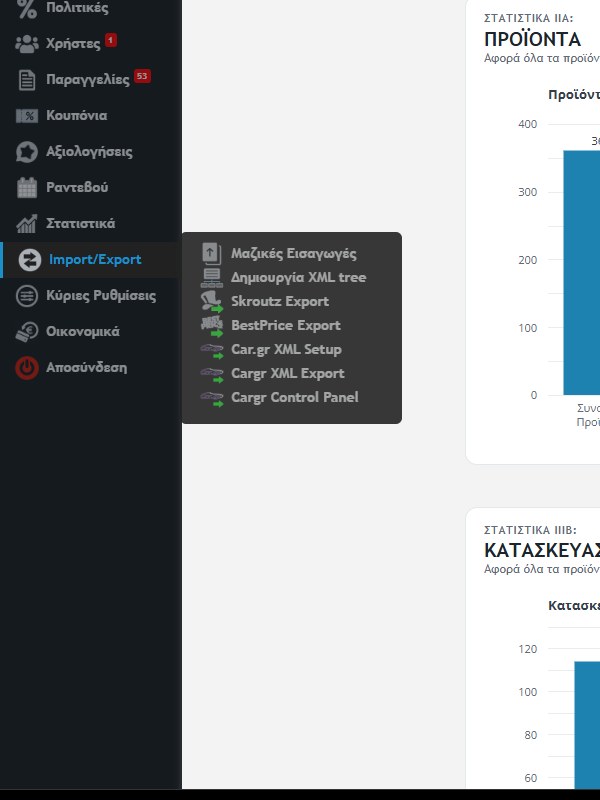
How the exports work
The export tools have no screen of their own. With one click in the menu the store builds the file and returns you to the home page with a green message stating how many products were exported. The file is saved in the store’s folder, and external systems (Skroutz, BestPrice etc.) read it from its link. The exports can also run automatically from the server (cron), so you usually don’t need to press the button yourself. Each run is recorded in the action Log.
The Skroutz, BestPrice and Car.gr exports export only products that simultaneously have stock, a photo and are visible in the store. The price sent is the final price (with the discount or policies that apply). If a product has an MPN alias, that is used, and the message at the end states how many products changed.
Full Store Exporter
Runs all the exports together in one step: it updates the store’s products (like the Product Store Updater), builds the Skroutz and Google / Facebook campaign files and updates the store map (XML tree). When it finishes, it writes “Store Exporter Sync … Done” and returns you to the Products List. It is the tool that also runs automatically from the server.
XML tree Creation
Builds the store map (sitemap.xml), so that search engines find your pages. It includes:
- the main pages (home, information, stores, manufacturers, contact),
- the menu categories, together with the subcategories that have active products, and the “New” and “Offers” views,
- the manufacturers that appear in the menu.
Run it again after changes to the categories or the menu.
Skroutz: Store and Export
Skroutz is a price comparison site. In the menu there are two tools:
- Skroutz Store: a short link to your store’s dashboard at Skroutz (merchants).
- Skroutz Export: builds the product files. With one run four files are created:
SkroutzExport.xml: the Skroutz feed (code, name, link, photo, category, price, availability and sizes).GSADSExport.xml: feed for Google Shopping (RSS).DMExportFB.csv: catalogue for Facebook.DMExport.csv: a simple catalogue (ID, title, link, photo, price, offer price).
In Skroutz you set the link of SkroutzExport.xml in your store’s settings.
BestPrice: Store and Export
- BestPrice Store: a short link to the BestPrice dashboard (merchants).
- BestPrice Export: builds the file
BestPriceExport.xmlfor BestPrice (price comparison). It exports the products with the same rules described above, with availability “In stock” or “On order”, the sizes that have quantity and the colours.
In BestPrice you provide the link of BestPriceExport.xml.
Public CSV Export
For the connection with the Public marketplace. It creates two files: PublicExport.xml (products) and PublicOffers.xml (offers), with category, title, description, manufacturer and photos. It exports products with a discount of 10% and below. The exporter is meant to run automatically about every 2 hours from the server, and manual execution from the menu is for exceptions.
Atlantis SyncNow and ERP not Synced
These two tools concern installations that are connected to the Atlantis ERP. They usually appear only when the connection is active.
- Atlantis SyncNow: immediately starts the synchronisation of the store’s products with the ERP database (codes, descriptions, colours, sizes, categories, retail and wholesale prices and stock per store). Synchronisation can also run automatically, and the button is for when you want it done now.
- ERP not Synced: a page with the products that changed in the ERP and have not yet passed to the store. At the top it states how many ERP products changed and how many store products are affected.
Before you use the tools
- If a product doesn’t appear in a comparison site or marketplace, check that it has stock, a photo and is visible.
- After changes to many products or categories, run the Product Store Updater first and then the exports.
- External systems read the file periodically, so a change does not show there immediately.