
Interest Requests
Interest Requests is the tool for customers who want a product that is not in stock right now. Instead of losing the customer, the store shows the product with an “I’m interested” button in place of “Add to cart”, the customer leaves their details, and the request is recorded in a list so you can get in touch. You find it in the menu Orders → Interest Requests.
It is not an order: a request does not touch stock, ERP, POS, vouchers, coupons or sales statistics. It is only a record of interest, which you handle yourself.
When it shows: the tool and its settings only show when the “Interest Requests” module is active in your eShop, and products only appear with “I’m interested” once you turn on the related switch in the Platform Setup. With the switch off, the store works as before.
- What the customer sees in the store
- The list
- The status of a request
- The window of a request
- Filters and search
- Actions on many records and export
- The request emails
What the customer sees in the store
With the switch on, the store also shows products that have a photo but no stock:
- In the product list: the card says “Available on request”, and instead of the cart there is an envelope button that opens the product page. Products without stock are placed at the end of the list.
- On the product page: instead of sizes and “Add to cart” the request form appears, with Name, Email, Phone, Size, Quantity and Questions / Notes. If the customer is logged in, their details are already filled in. The product is never added to the cart.
- The price: shown as usual. If you prefer, you can hide it and show “Price on request” instead (a switch in the Setup).
Products with stock in some sizes
A product that has at least one size in stock is sold as usual, with “Add to cart”. With the third switch in the Setup, the size list shows all the sizes, and the ones that are not available appear faded so they stand out from the available ones. When the customer clicks a faded size, “Add to cart” is hidden and the “I’m interested” form appears with the size already filled in. The same happens in quick purchase. If they click a size that is in stock again, “Add to cart” comes back.
A size that does not exist cannot be added to the cart, not even with a manual attempt: the check is also done on the server.
The list

At the top it shows how many records there are. Each row is a request and shows:
- Tick box and arrow ▸: the box selects the request for the actions on many, and the arrow (or a click anywhere on the row) opens the request window. The ▸ in the header closes all open windows.
- ID and Date: the request number and when it was sent.
- Product: the description and the code (MPN) of the product.
- Quantity x Size: what the customer asked for.
- Customer: full name and email.
- Status: four icons that show which step the request is at (see below).
- Floppy disk and bin: at the end of the row. The floppy disk saves the row’s status and notes, the bin deletes the request.
The status of a request
The “Status” column has four buttons, and the blue one is the current step. Hover over them to see their name:
- Pending (clock): the request has just arrived and you have not handled it.
- Contacted (phone): you spoke to or wrote to the customer.
- Completed (tick): the request was served, e.g. the product arrived and you made the sale.
- Cancelled (×): the request will not go ahead.
You choose the step and press the row’s floppy disk to save it. At the top of the list, the Pending and Contacted cards count how many requests are in each step. The “Pending” card turns red when requests are waiting, and one click filters only those.
The window of a request
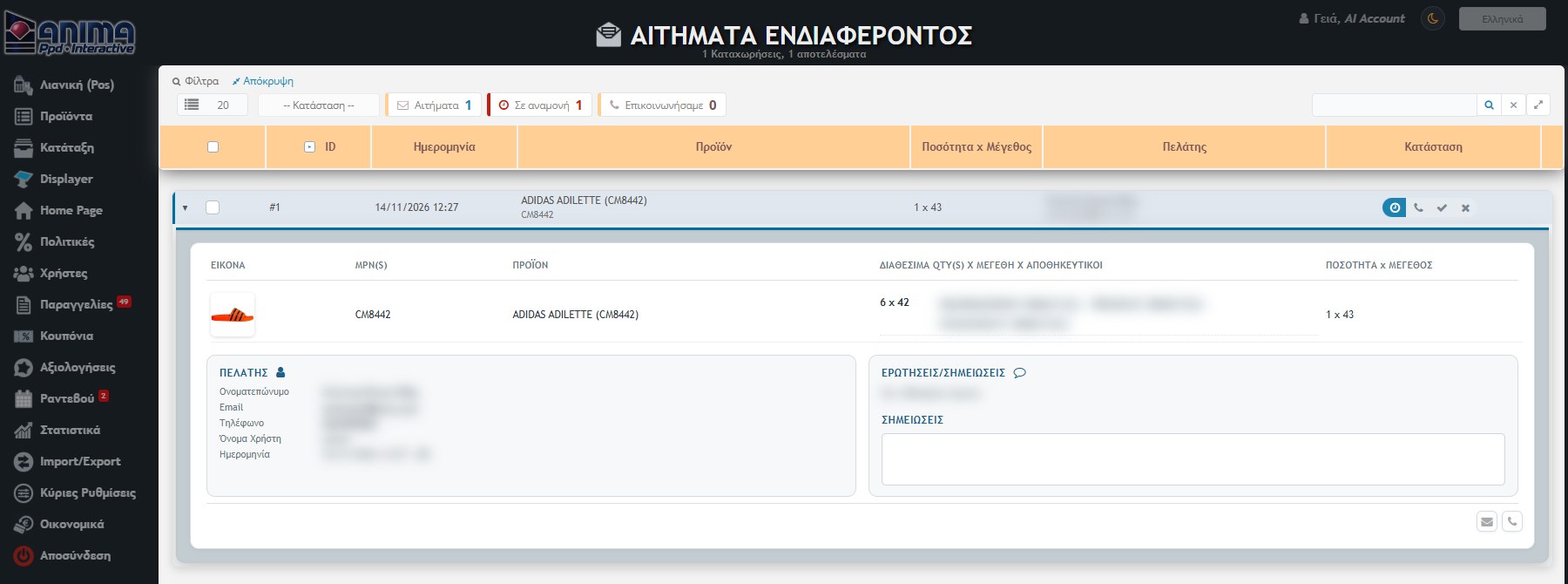
The window has the product table and two cards.
The product
The table at the top shows the image (enlarged on click), the MPN (opens the product edit), the product (opens its page in the store), the available pieces per size and per storage location right now, and what the customer asked for (quantity x size). This way you see at once whether the product has arrived in the meantime. If there is no stock at all, it says “No availability”.
Customer
The card has the full name, email (a link to write to them), phone (a link to call), the username if they were logged in, and the date and language of the request.
Questions / Notes and Notes
The second card shows the customer’s message, and below it there is a Notes field for your own comments (e.g. “called, will come by on Saturday”). They are saved with the row’s floppy disk.
The bottom row
At the bottom right there are the email, phone and bin buttons. On the left, when the same product is requested by more than one customer, it shows how many. It is useful for your purchasing: you see which products are worth ordering.
Filters and search
- Filters / Hide: hides or shows the row of filters.
- Number per page: 10, 20, 30, 50 or 100 requests.
- Status: shows only the requests of one step.
- Search: looks in the full name, email, phone, description and code (MPN) of the product. With # and a number (e.g. #12) it finds a specific request. The ✖ clears the search.
- Maximise: the icon at the end of the filter row enlarges the list to the full screen.
If the “I’m interested” feature is turned off in the Setup, a reminder appears in the filter row. Existing requests stay visible.
Actions on many records and export
Tick requests and move the mouse over the header tick box (or tick it to select all the requests of the page). A menu opens with:
- Export XLS/CSV: exports the selected requests. If you have not selected any, it exports all those that the filters return. The switch next to it chooses the format. The file has ID, date, MPN, product, size, quantity, customer, email, phone, message, status and notes.
- Multiple Deletion: permanently deletes the selected requests. It cannot be undone, which is why it asks for confirmation.
The request emails
Every time a customer sends a request, two emails go out:
- To the store: with all the details of the request and a link to the product. It arrives at the platform management address (Platform Setup → Platform Management Emails).
- To the customer: a confirmation that we received the request. You set its text in Emailing → Email Templates, with the template of type “Product Interest Notification”, in Greek and English. If there is no active template, a ready-made text is sent.
Personal data: when a customer asks for their data to be deleted (GDPR) and chooses to anonymise their orders, the interest requests they sent with the same email are deleted too.
Before you close a request
- Check the “Available” column to see whether the product or the size has arrived. If so, contact the customer and move the request to “Contacted”.
- Do not forget to press the row’s floppy disk: the status change and the notes are not saved on their own.
- Deletion cannot be undone. If you want to keep a history, export the list to XLS first.