
Voucher Management
Voucher Management is the list of tracking vouchers, i.e. the tracking codes of shipments by the couriers. Here you see all the vouchers that came from the orders, together with those you enter manually (returns and your own shipments), and for each one you check the courier, the shipping costs and whether it has been collected. You find it in the menu Orders → Voucher Management.
- The three types of vouchers
- The list
- Filters and search
- Adding a new voucher
- Change, export and delete
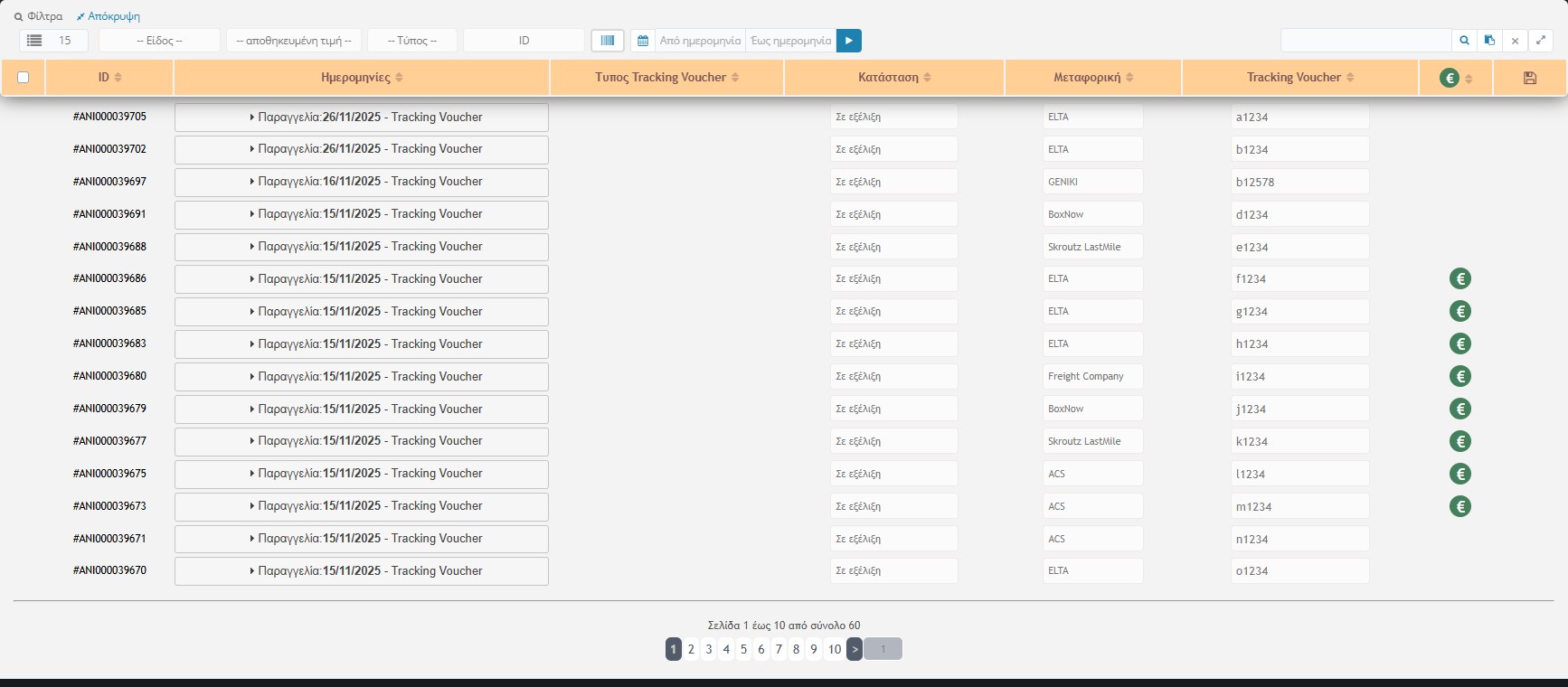
At the top it states how many entries exist and how many match the filters (e.g. “1017 Entries, 887 results”), and at the bottom the pagination. At the top left you set how many vouchers are displayed on each page (5 to 30).
The three types of vouchers
The “Tracking Voucher Type” column and the “Type” filter distinguish three kinds:
- Shipments: the vouchers that have been created from the Orders for shipping an order. Their data come from the order itself and here you see them for checking only; you change them from the Orders.
- Returns: vouchers that concern product returns. You can correct them from this list.
- Imports: vouchers that you added manually (e.g. a shipment made outside the orders). You can correct and delete them from this list.
The list
Each row is a voucher and shows:
- ID: the order number (e.g. #ANI000039705). For manual vouchers it is an ID of their own.
- Dates: a button “Order: date – Tracking Voucher: date”. With a click it opens and shows the shipment details: who it is from, the order stage and the shipping costs.
- Tracking Voucher Type: shipment, return or import.
- Status: the status of the order (e.g. In progress, Delivered).
- Courier: which courier made the shipment (e.g. ELTA, GENIKI, ACS, Skroutz LastMile, BoxNow, Freight Company).
- Tracking Voucher: the tracking code itself.
- Collection (€ symbol): appears when the order has been marked as collected (green). In manual vouchers the symbol is purple and shows that the voucher has been charged.
- Floppy disk: saves the changes of the row, when the row allows changes.
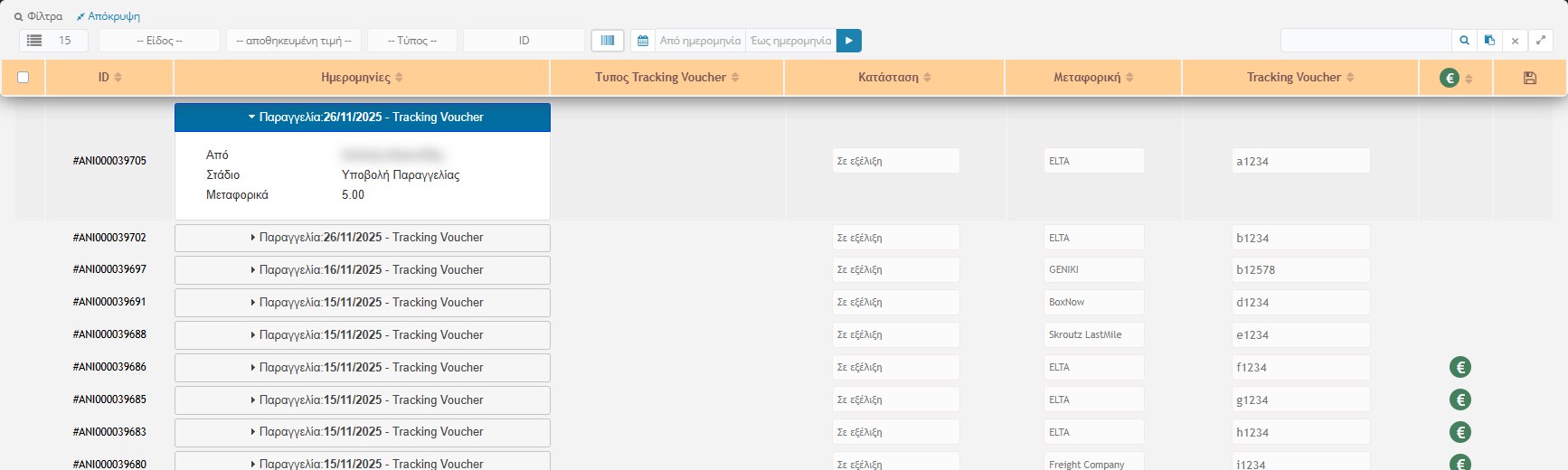
Filters and search

- Kind: filters by the stage or status of the order: In progress, Cancelled, Delivered, Refusal of Delivery, Change / Replacement / Product Return.
- Courier (stored value): shows only the vouchers of one courier.
- Type: Shipments, Returns or Imports.
- ID / sorting: the pop-up menu changes the sorting (ID, date, last change). A second click on a column title reverses the order.
- Date range: “From date” and “To date” with a calendar picker. The ▶ applies the period.
- Search: by order number (putting # in front), by tracking voucher number, by full name or by date. The ✖ clears the search.
- Multiple search: the clipboard icon opens a box where you put a list of tracking vouchers, separated by Enter or comma. It searches with an exact match, i.e. it finds only exact matches. It is ideal when the courier sends you a list of vouchers and you want to see the corresponding orders.
Adding a new voucher
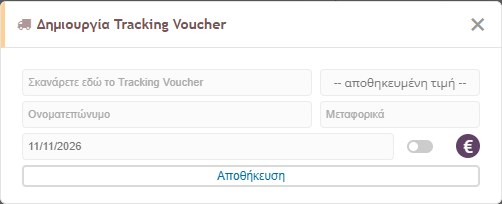
The button with the barcode next to the ID filter (tooltip “Add Other Tracking Voucher Shipment”) opens the form for a new, manual voucher:
- Scan the Tracking Voucher here: click inside the field and scan the voucher’s barcode (or type it).
- Courier: choose the courier from the list.
- Full name and Shipping cost: the recipient and the cost of the shipment.
- Date: pre-filled with today’s and changed with the calendar.
- Collection switch (€): shows whether the voucher has been collected.
- Save: the voucher is added to the list as an “Import”, with a new ID.
Change, export and delete
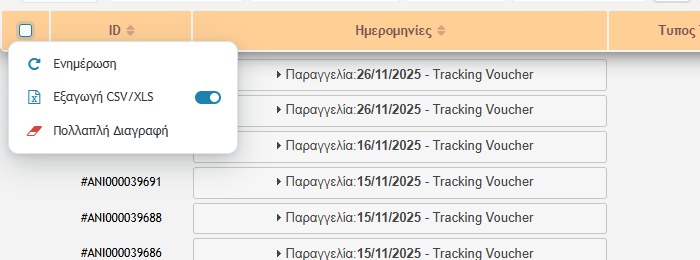
You tick rows (or all from the header checkbox) and choose:
- Update: saves the changes of the selected rows (date, full name, voucher, courier, shipping cost, collection and stage where allowed). As soon as you change something in a row, the row ticks itself.
- CSV/XLS Export: exports the selected vouchers, also depending on the filters. The switch next to it chooses the format.
- Multiple Delete: deletes the selected vouchers that were entered here. It cannot be undone.
Don’t mix up the tools: to create an order’s voucher use the “Create Tracking Voucher” action in the Orders. This page is for checking, finding and exporting them and for entering those made outside the orders. The Voucher Checking and Vouchers Send tools are separate.