
Orders: list and order management
The Orders page is the control panel for all of the store’s orders. Here you see every new order as soon as it comes in, change its stage and status, correct the customer’s details, prepare the courier shipment and print or export the orders you need. You find it in the menu Orders → Orders. The other tools of the section have their own articles: Picking & Packing, Returns and Voucher Management and the other tools (vouchers, backup, checks).
- The row of an order
- The window of an order
- Stage and Status
- Filters and search
- Actions on many orders
- Useful tips
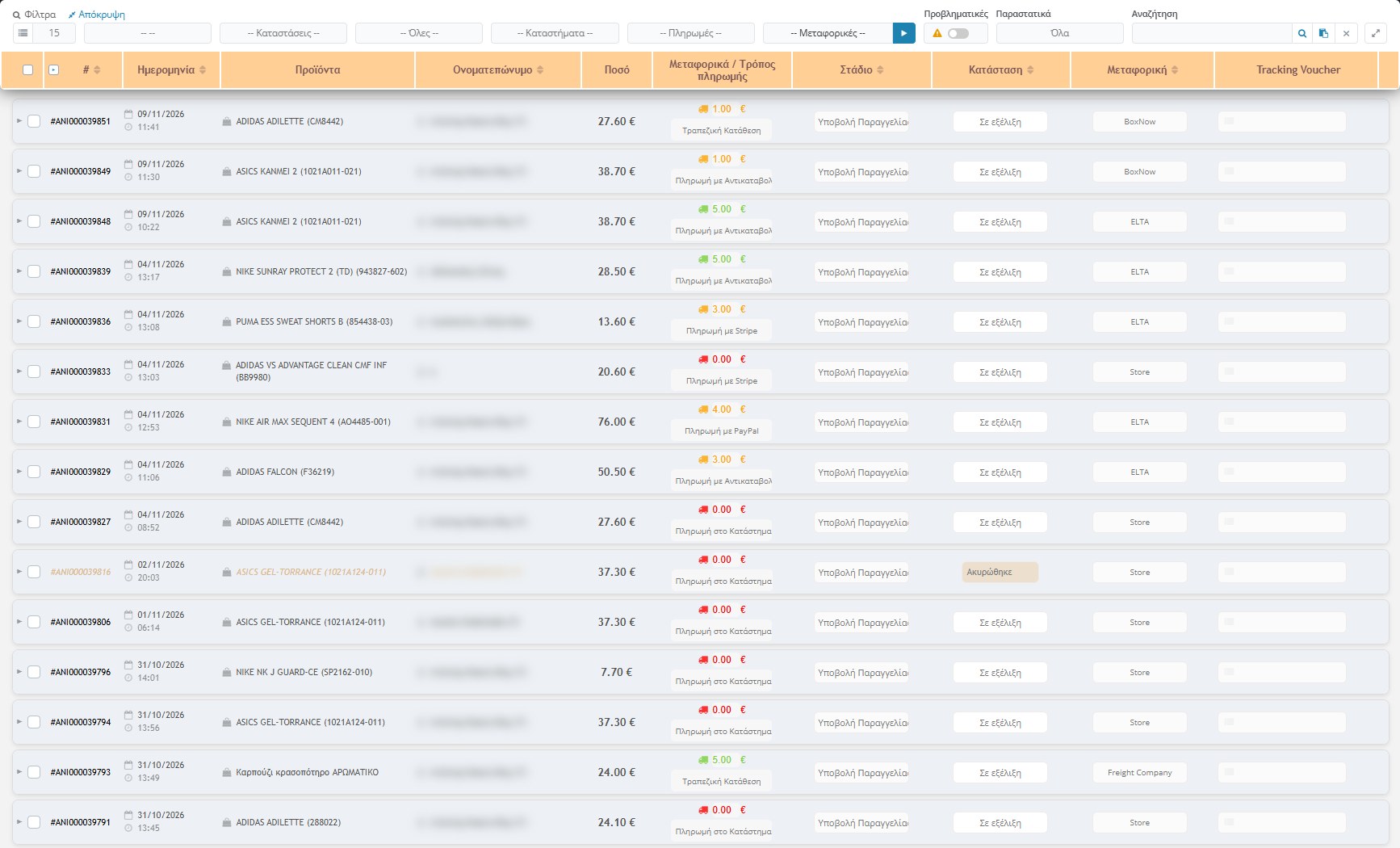
At the top of the page it states how many orders were found (e.g. “1016 results”). The orders appear from the most recent to the oldest and, at the bottom, the pagination shows which page you are on and how many there are in total. At the top left you set how many orders will be displayed on each page (from 5 to 30).
The row of an order
Each row is an order. From left to right:
- Selection checkbox and arrow ▸: the checkbox selects the order for the actions on many orders. The arrow opens the order window. The ▸ in the header closes all open orders at once.
- Order number (#): its unique code, e.g. #ANI000039851. Next to it notification icons may appear (see below).
- Date and time: when the order was placed.
- Products: the products of the order, with their MPN.
- Full name: of the customer. The letter in parentheses shows the type of the order: (T) for an order registered by phone and (R) for a replacement order.
- Amount: the total of the order. In cancelled orders and orders with a refusal of delivery the final amount after the sale appears in red.
- Shipping / Payment method: at the top the shipping cost (truck icon) and below the payment method, which you change by choosing from the list (in store, cash on delivery, bank transfer, PayPal, credit card, Stripe). The colour of the shipping shows: red when it is 0 (free shipping or store pickup), orange when it is lower than normal and green when it is full.
- Stage and Status: the two lists that define where the order is (see below).
- Courier: which courier it will be sent with (e.g. ELTA, GENIKI, ACS, Skroutz LastMile, BoxNow, Store for store pickup, Freight Company).
- Tracking Voucher: the shipment’s tracking code. It stays empty until a voucher is created (see Create Tracking Voucher). When there is a voucher, the courier’s actions also appear in the field, such as printing and cancelling the voucher.
- Collected (green symbol): appears when the order has been marked as collected.
- Save (floppy disk): saves the changes of this row, without reloading the page, so the changes you have made to other orders are not lost.
Notification icons and row colours
- Flashing exclamation mark: the order is in progress and has product information (comments) that you must see before you proceed.
- Green ✔: the order is ready for shipping.
- Green circle: the order has comments about the order itself.
- Faded row with orange text: the order is cancelled (in the example #ANI000039816).
- With ERP active: an indication of whether the order has been synchronised with the ERP or not.
- Skroutz orders: show the buttons to accept or reject the order, with pickup options, and a send button when it is ready.
The window of an order
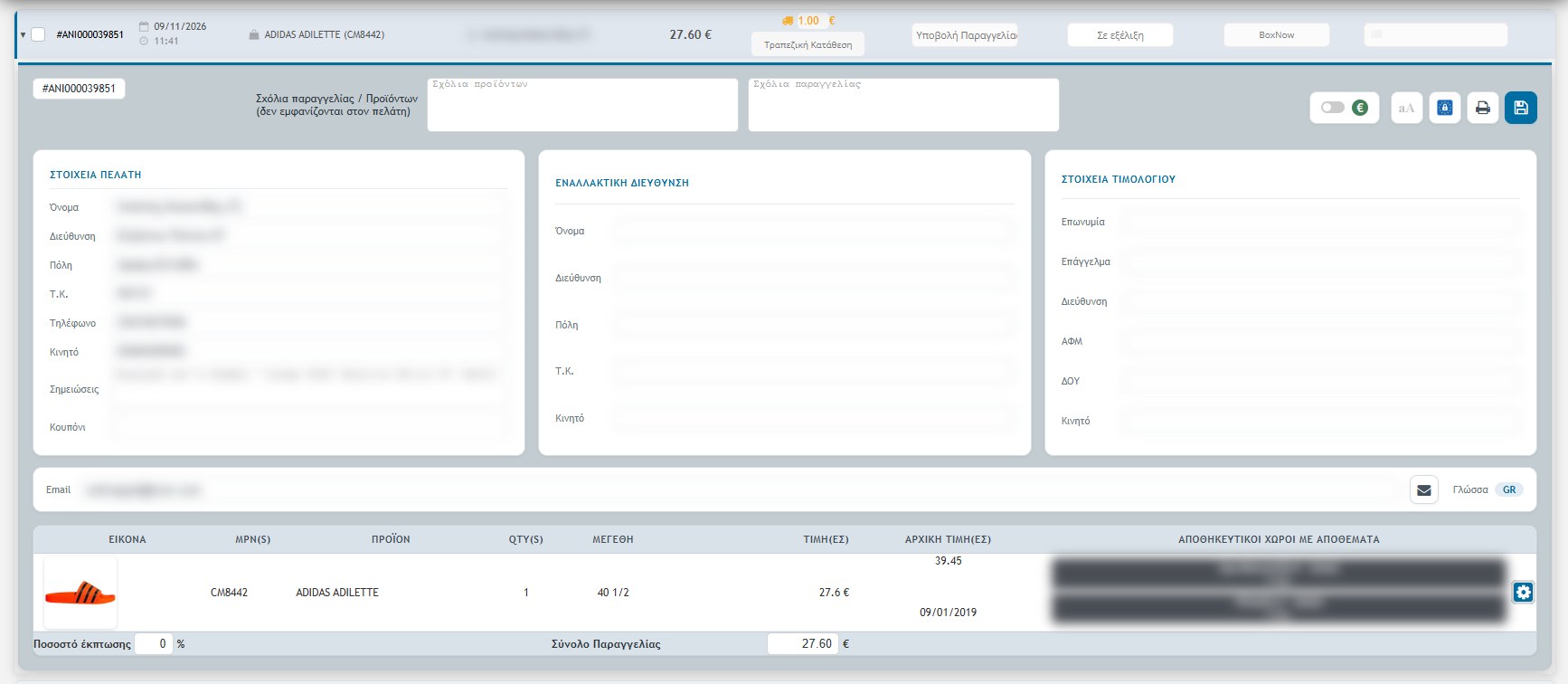
With the arrow ▸ the full order window opens below the row. All fields are editable, and the changes are applied when you press Save.
The top row
- Order / product comments: two text boxes with internal comments (not shown to the customer): one for the products and one for the order. Product comments activate the flashing exclamation mark on the row.
- “Collected order” switch (€): marks that the order has been collected.
- aA: converts the customer’s fields to capital letters.
- Padlock (GDPR): replaces sensitive details with *. Caution: if you save, the change cannot be undone.
- Print: prints the order in a print window.
- Save (floppy disk): saves the order’s changes.
The customer’s details
- Customer details: name, address, city, postcode, phone, mobile, notes and coupon. The notes often contain the pickup point (e.g. “Pickup from BoxNow”).
- Alternative address: if the customer asked for delivery to another address (name, address, city, postcode, mobile).
- Invoice details: company name, profession, address, VAT number, tax office and mobile, when the customer asked for an invoice.
- Email and language: the customer’s email and the order’s language (GR / EN). The envelope button resends the order notification email to the customer. The language determines which language the emails will arrive in.
The products and the total
The table below shows for each product: image, MPN, product, quantity, size, price and original price (with the discount percentage and the date), and the storage locations with stock, i.e. in which stores the product exists and how many pieces. The gear next to it opens the options of the product row. At the bottom there are the Discount percentage (%) after the sale and the Order Total.
Stage and Status
- Stage: which step the order is at. By default: Order Submission, Regularity Check, Product Availability, Product Picking, Order Invoicing, Shipping, Product Change, Product Replacement, Product Return.
- Status: In progress, Cancelled, Delivered, Refusal of Delivery.
The lists can be customised from the Dropdown Lists of the Main Settings. Changing them is not a simple label, because it triggers actions:
- Cancelled / Refusal of Delivery: the order’s pieces return to stock and a cancellation email is sent to the customer. This happens only at the moment the status changes, so an already cancelled order does not return stock again and does not send an email again. A cancelled order is not modified again from its row. A change is made only from the multiple selection, and then the documents must be deleted from the ERP and the quantities corrected.
- Stage “Order Submission”: picking is considered not started and all pieces become “to find” again.
- Delivered with POS active: a document is issued as in the POS and a print window opens.
- With ERP active: every change is synchronised with the ERP.
Filters and search

The filter bar is at the top. Hide / Show hides or shows it, and the browser remembers it.
- Stage: shows only the orders at a specific stage.
- Status: In progress, Cancelled, Delivered or Refusal of Delivery.
- Type: “All”, “Replacement (R)”, “Invoice” or “Phone (T)”.
- Stores: orders that concern a specific store / storage location.
- Payments: by payment method.
- Couriers: multiple courier selection. It is applied when you press the ▶.
- Problematic: the switch shows the orders in progress that have product information, regardless of the stores filter.
- Documents: with POS active, a filter by document shipping status (All, Not sent, With error, Pending, Sent).
- Sorting: with a click on a column title (e.g. Date, Full name, Stage). A second click reverses the order.
Search
The Search field searches in many ways:
- Order number: you put the symbol # (or +) in front.
- Tracking voucher: you put the symbol * in front.
- Coupon, date, MPN, full name, email, phone and product name: you type them normally.
- Multiple search: the clipboard icon opens a box where you put a list of order numbers, tracking vouchers or coupons, separated by Enter or comma. It searches with an exact match, i.e. it finds only exact matches. It is ideal when your courier sends you a list of vouchers and you want to immediately see the corresponding orders.
- The ✖ clears the search.
Actions on many orders
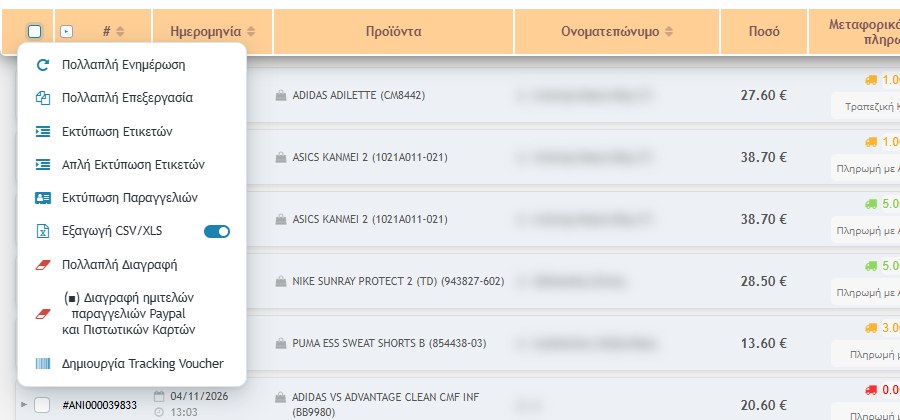
You tick orders (or all from the header checkbox) and choose from the menu:
- Multiple Update: saves all the orders you have changed and ticked. As soon as you change something in a row, the row ticks itself.
- Multiple Edit: changes in one move many orders: payment method, stage, status, courier and whether they are collected. The same consequences as for individual changes apply here too (stock return and email on cancellation, ERP, document).
- Print Labels: prints full labels for the parcels. Simple Label Print: labels with only a barcode and order number.
- Print Orders: prints the selected orders.
- CSV/XLS Export: exports the selected orders to a file. The switch next to it chooses the format (XLS or CSV).
- Multiple Delete: permanently deletes the selected orders. It cannot be undone.
- (■) Delete unfinished PayPal and Credit Card orders: deletes the orders that started with a PayPal or card payment and were not completed (marked with ■ on the date). It deletes only those that still have this mark.
- Create Tracking Voucher: creates shipping codes according to the courier set on the selected orders. For it to work, first choose the courier on each order and save it, and then press this action. It cannot be undone and the courier charges for shipping the parcel.
The menu actions that don’t appear in the screenshots (multiple edit, printouts, export, deletions, voucher creation) are described from the page’s texts and the tool’s code. They were not executed in the example, because they affect real data.
Useful tips
- Before you cancel an order, remember that it changes the stock and an email goes to the customer. There is no easy restore.
- Don’t press the GDPR padlock unless you are sure: the details cannot be recovered after saving.
- For vouchers: start with the courier and saving, then voucher creation, then the section’s tools (Voucher Management, Vouchers Send, Check ACS orders).
- For product picking use the Picking & Packing tool in the Picking & Packing article. When picking is finished, the order appears with the green ✔.
- For returns and product exchanges see the Returns article.