
Picking & Packing
Picking & Packing is the tool for gathering the products of open orders from the stores and warehouses. Instead of opening order after order, you see a list of the products that must be found, walk around the space, scan the barcode of each product you find and the system updates the order by itself. You find it in the menu Orders → Picking & Packing, with a number next to it showing how many products are waiting.
- The screen
- A product card
- Scanning a barcode
- When you can’t find a product
- Filters and search
- Using it from mobile
- The course of an order
The screen
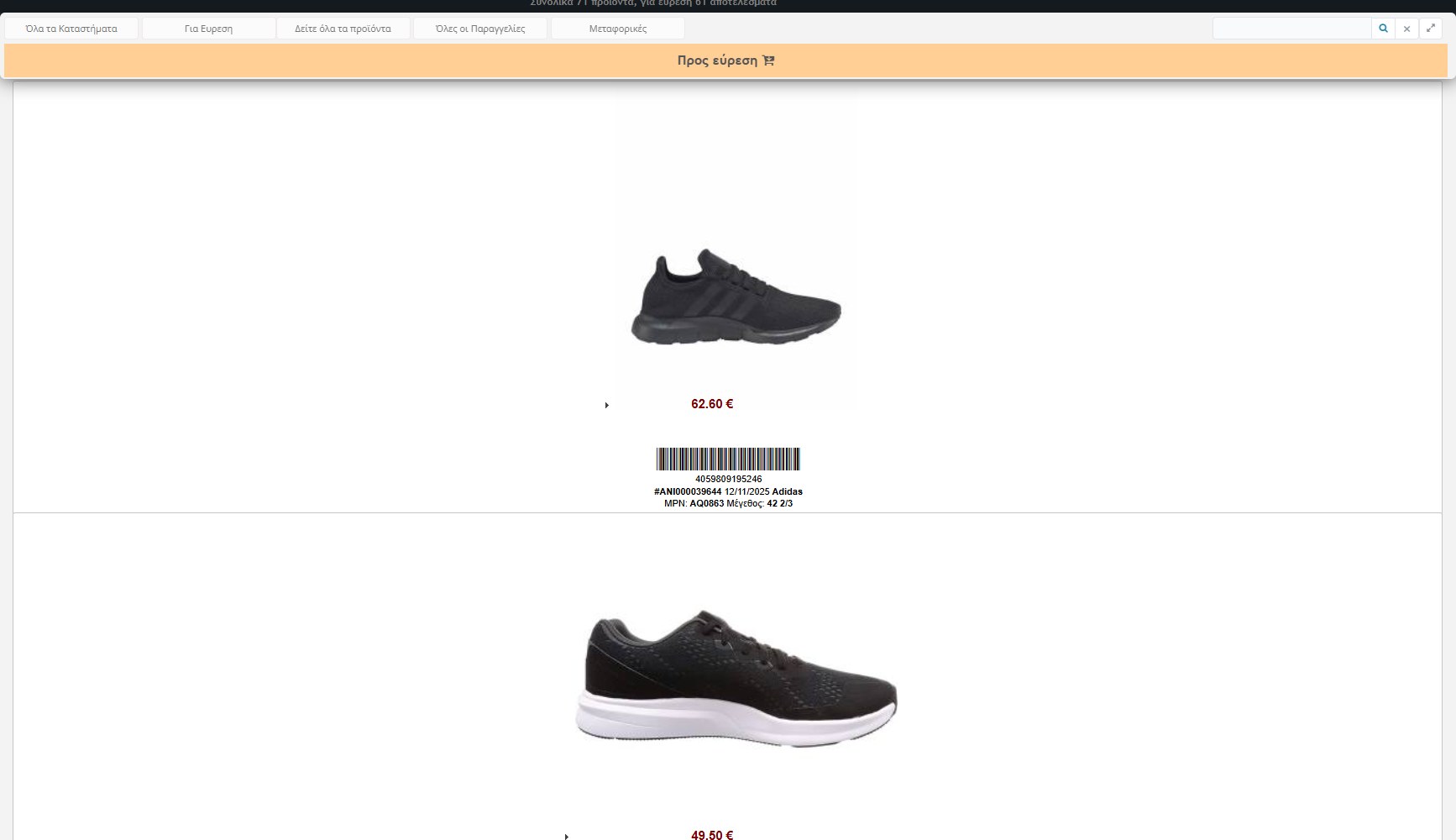
In the page title the totals are written: how many products are waiting in total and how many of them are “to find” (e.g. “Total 71 products, to find 61 results”). The orange box below the filters (To find) shows which group you are viewing: “To find”, “In picking” or “Problematic”.
The list shows products from orders that are still in progress and at the initial stages. An order with many products gives many cards, one for each piece and size. The products appear in the order in which the orders came in.
A product card
Each card has everything you need to find it and tell it apart:
- Photo of the product and the price the customer paid.
- Barcode: as a bar code and as a number below. It is the barcode of the specific size of the product.
- Order details: the order number, the date and the manufacturer (e.g. “#ANI000039644 12/11/2025 Adidas”).
- MPN and size: e.g. “MPN: AQ0863 Size: 42 2/3”.
- Arrow ▸: opens the card (see below).
The icons of the card
- Flashing green truck: the order has only one product, so as soon as you find it, it can be shipped immediately.
- Blue box with a number: the order has more products, and the number shows how many.
- Flashing red exclamation mark: the product has been marked as “not found” (see below).
- Flashing icon with many stores: the product exists in more than one storage location.
Open card
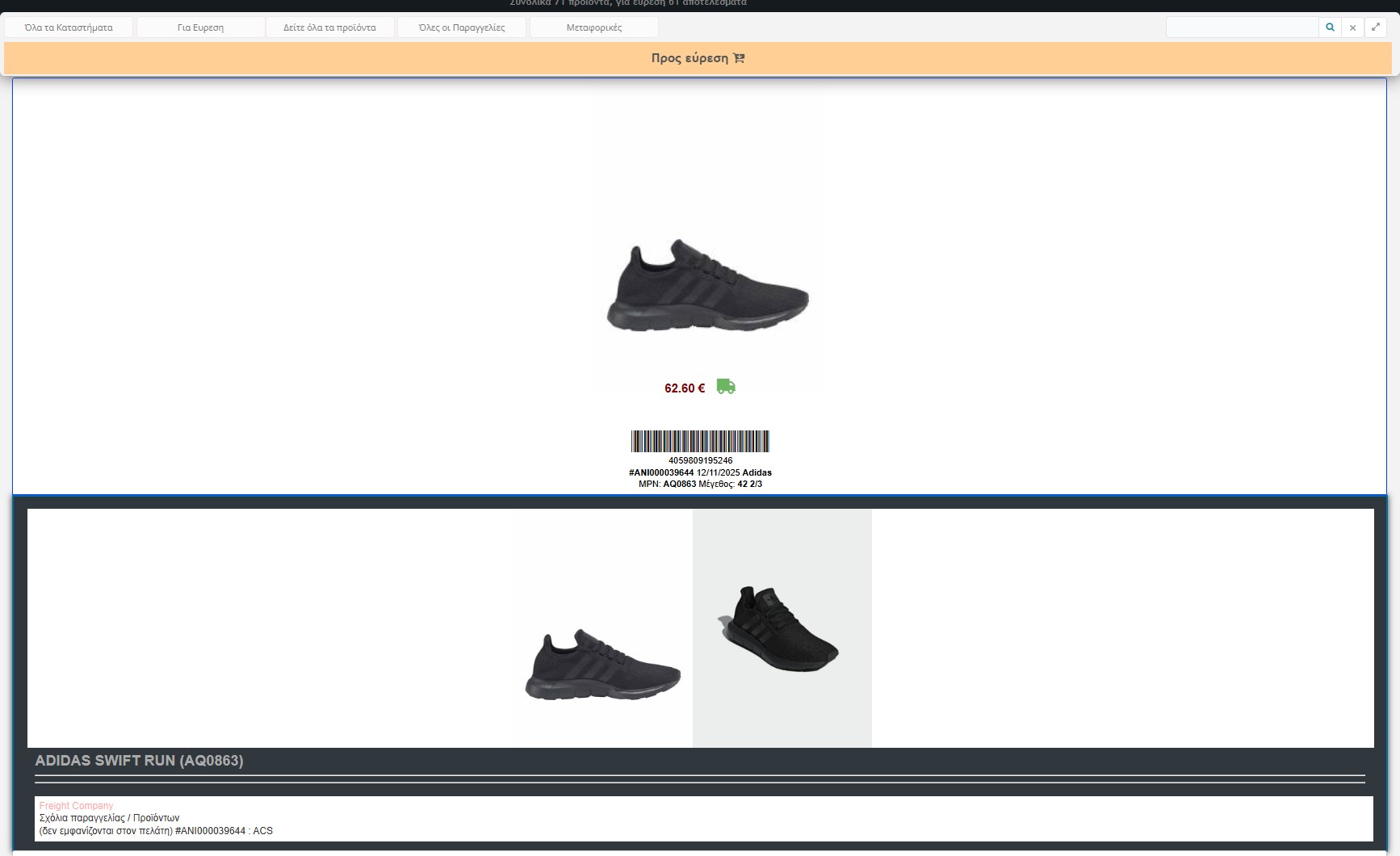
With the arrow ▸ the card opens and you see all the photos of the product (by clicking a photo you enlarge it, so you make sure you pick the right colour and model), the full title, the order’s courier and the order / product comments that were written in the Orders (not shown to the customer). If there is a note about the product, you will see it here.
Scanning a barcode

Scanning happens after you choose the store where you are in the first filter. Then the Barcode field appears, ready for typing (autofocus), and the scanner “types” into it.
- Choose the store (e.g. your own from “All Stores”).
- Scan the barcode of the product you found. The whole number of the barcode is needed.
- The system finds the order that is waiting for this product and size and marks it as picked. A confirmation sound is heard.
- If the barcode doesn’t match any waiting product, an error sound is heard and nothing changes.
If the same product has been requested by several orders, each scan satisfies one of them. Each record is written to the action Log (with the order number and the barcode).
With ERP active: each scan also sends the transfer document to the ERP for the storage location you chose.
When you can’t find a product
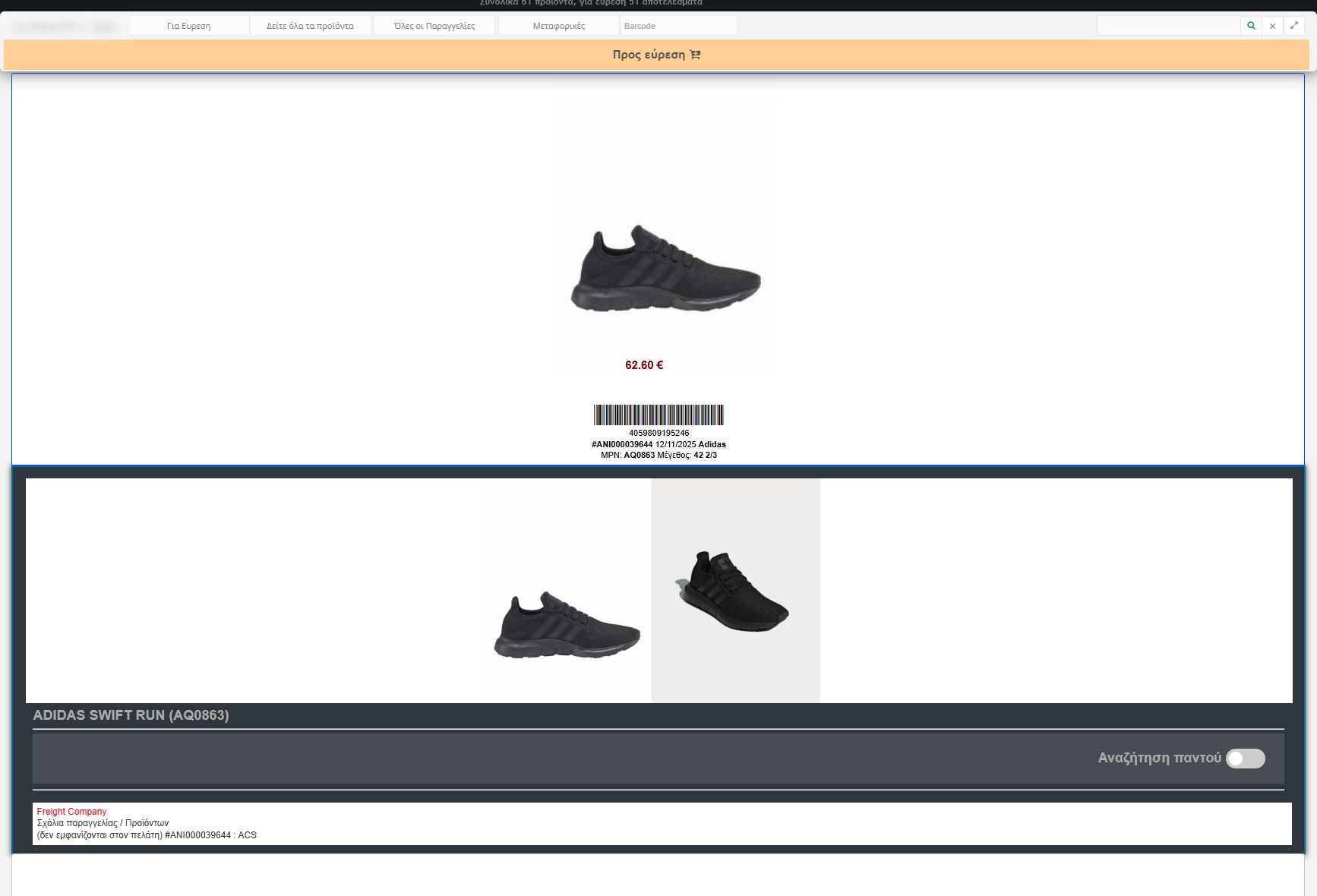
When the product is not on the shelf, open the card and turn the “Search everywhere” switch. The product is marked as “not found” in your store and the other stores are asked to search for it:
- The card gets the flashing exclamation mark and appears in the “Problematic” filter.
- A note is automatically added to the order comments that the product is missing from the specific store. This way the order also shows in the Orders with product information.
- When the product is found in another store, it is scanned normally from there and the order continues.
Filters and search
The filter bar is at the top. Each change loads the list immediately and the browser remembers the store you chose.
- Store: “All Stores” or a specific one. It also enables the scanning field.
- Product group: “To find” (not found yet), “In picking” (have been found and are waiting for the rest of the order) or “Problematic” (not found).
- See all products: you limit by category (e.g. Shoes, Clothing, Accessories). It fits when you pick by store department.
- All Orders: all, only orders with 1 product (immediate shipping) or only with more products.
- Couriers: only orders that will be sent with a specific courier.
- Search: the field at the top right searches the cards live, by order number or date, by manufacturer, by MPN or size and by barcode. The ✖ clears the search.
There is also the ability to print simple labels with a barcode for the orders in the list.
Using it from mobile
The page adapts to mobile and tablet, so you can scan from your phone inside the warehouse. On mobile the barcode field is large at the top, the title shows which group you are viewing and the filters open from the ☰ button in a side panel.
The course of an order
- The order comes in from the store and appears in the Orders at the first stage.
- Its products appear in Picking & Packing as “To find”.
- Each product you scan becomes “In picking”. While products are missing, the order stays at an early stage (with the default names, “Regularity Check”).
- When all the order’s products are picked, its stage advances automatically (with the default names, “Product Picking”). You then move on to the next stages from the Orders.
- Then the vouchers and the shipping follow (see Voucher Management and Vouchers Send).
The products that Picking & Packing doesn’t find in the warehouse, you can also correct from the Inventory and the Displayer.