
Orders: vouchers, backup and checks
This article covers the order tools for vouchers, archiving and checks. The Orders list, Picking & Packing, Returns and Voucher Management have their own detailed articles: Orders, Picking & Packing, Returns and Voucher Management. Here there are five tools:
Note: some tools (ACS, ERP, POS, courier) appear or work only when they have been activated for your installation.
Orders Backup
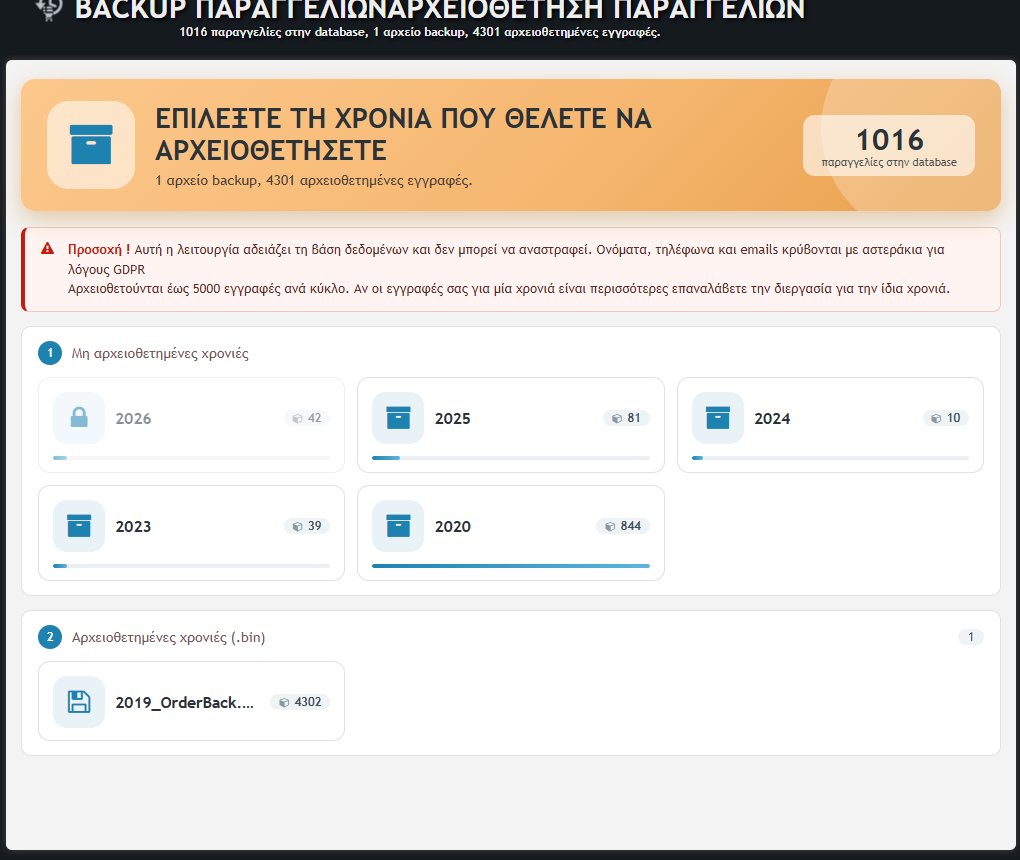
The archiving of old orders, so the database doesn’t get heavy. You choose a year (the card shows the number of its orders) and its orders are:
- saved in a backup file (e.g.
2019_OrderBack.bin), in which names, phones and emails are hidden with asterisks (for GDPR reasons) and notes are removed, - deleted from the database.
- Up to 5000 records per cycle are archived; if the year has more, repeat the procedure.
- Recent years are locked (shown with a padlock) and are not archived.
- The backup files that have been created appear in the “Archived years (.bin)” list, from where you download them.
Caution: the operation empties the database and cannot be undone, and the personal data in the backup cannot be recovered. Confirmation is requested before archiving.
Voucher Checking
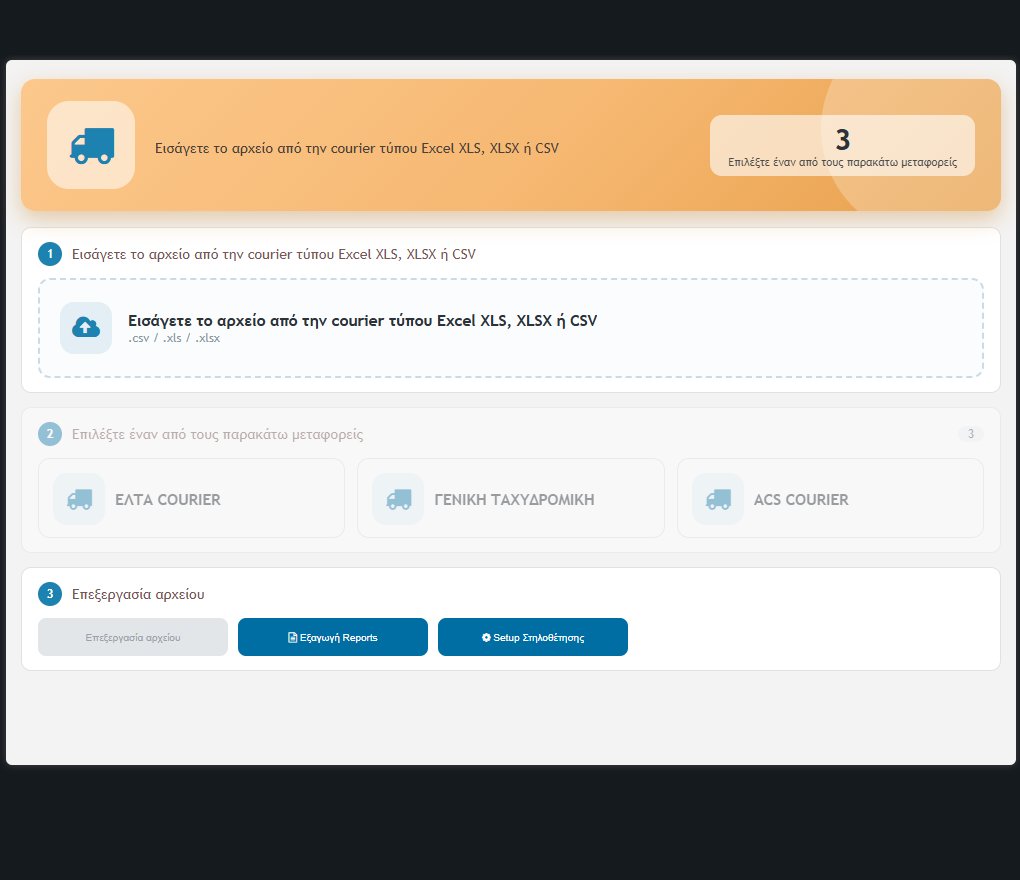
The check of cash-on-delivery payments collected by the couriers. You upload the file the company sends you (Excel XLS / XLSX or CSV), the check matches the vouchers with the store’s orders and shows you the comparison.
- Upload: drag the file into the box or choose it.
- Courier: choose ELTA Courier, Geniki Taxydromiki or ACS Courier, so the columns are read correctly.
- File processing: you see the comparison and tick the vouchers you want marked as paid.
- Column Mapping Setup: you define which column of each courier’s file contains what (e.g. the voucher number and the amount).
- Export Reports: exports the reports of the checks, together with the records that had a problem.
Vouchers Send
The bulk sending of emails with the tracking code (tracking voucher) to customers. It sends an email for every order that meets all of the following:
- it has a voucher and a customer email,
- it is at the Shipping stage and in the Delivered status,
- it was placed in the last 15 days,
- a tracking email has not already been sent.
The email goes out in the language of the order and the order is marked as “sent” only if the email was actually sent; if it fails, it is tried again.
- From the BE (browser): one email is sent per load, with a progress bar and automatic refresh every few seconds.
- Automatically from the server (cron): in many installations it runs periodically (e.g. every half hour) and sends all pending ones with a short wait between emails. It is recorded in the Log as “Automated”.
Check ACS orders
Checks the new orders with ACS for hard-to-reach areas. For each new order (stage 0, in progress) that is not Skroutz Last Mile, store pickup or a return and has not already been checked, it asks ACS to validate the address and writes in the order comments:
- HARD-TO-REACH, if the area is hard to reach,
- ACS, if the address is normal.
If ACS does not respond, the order is checked again at the next run. After the check, a message appears with the count (ACS, HARD-TO-REACH, no answer). The tool also runs automatically from the server (in many installations twice a day).
Duplicate IDs Process
Fixes orders that have the same number. If there are duplicate IDs, the page displays them with the product, the full name, the time and the quantities, so that you can give one of the orders a free ID (free numbers are suggested; those reserved by another order are shown in orange). If there are no duplicates, you return to the Orders list.