
POS: Documents
The Documents page is the list of every document movement in your store in one place: retail receipts, invoices, credit notes and delivery notes. You find it in the left menu, under POS, and it appears only when POS is active in your store.
- What the list shows
- Filters and search
- Document status
- Reprinting as a copy
- Cancelling and credit notes
- Deleting
- Export to XLS / CSV
- Permissions
What the list shows
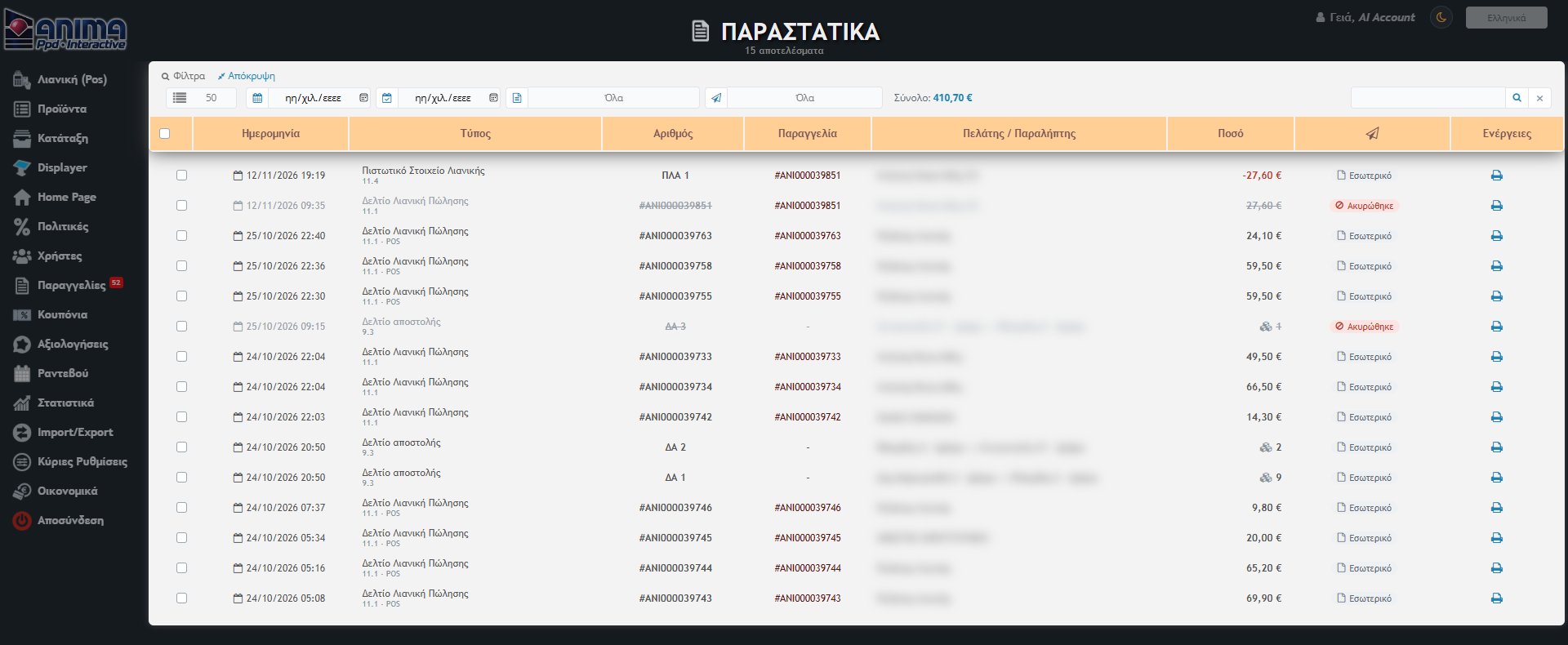
The list gathers three sources and shows them with the newest first:
- Receipts, invoices and credit notes issued by the POS. Every sale has its document and, if there is a return, its credit note too.
- Internal delivery notes between stores, as issued from the Displayer. The “Customer / To” column shows the route from store → to store and, instead of an amount, the number of items moved.
- POS sales without a separate document record. They show a “POS” mark under the type, and their receipt or invoice is printed from the order itself.
Each row shows: date and time, the document type (with its code below), the number (series and running number), the order it belongs to (a link that opens the order), the customer, the amount, the status and the action icons. Credit notes show a red negative amount, and cancelled documents are greyed out with a struck-through number.
The document types you may see:
- Retail Sales Receipt (11.1), the retail receipt and its Retail Credit Note (11.4).
- Invoice – Delivery Note (1.1) and its Credit Invoice (5.1).
- Delivery Note for internal transfers (9.3).
- Any other type defined in the “Document series” of the Dropdown Lists.
Filters and search

In the top bar you set what you want to see. As soon as you change a filter the list refreshes, with no extra click:
- Results per page: 25, 50, 100 or 200.
- From / To: a date range.
- Type: one specific document type. The list contains only the types that actually exist in your store.
- Status: Internal, Pending, Sent, Error or Cancelled.
- Search: looks in the number, the order, the customer, the MARK and the name of the type. The ✖ next to it clears all filters.
Next to the filters you see the Total of the amounts in the current search. Cancelled documents are not counted and credit notes are subtracted, so you see the net amount of the documents you filtered.
Document status
The column with the paper-plane icon shows where each document stands in electronic transmission:
- Internal: the document exists in the eShop and has not been sent anywhere.
- Pending: waiting to be sent to the provider or the ERP.
- Sent: it has been sent and the MARK is shown in place of the label. A document that has been sent can no longer change: it cannot be deleted.
- Error: the transmission failed. Hover over the label to see the error message.
- Cancelled: the document has been cancelled.
The connection with a specific e-invoicing provider or myDATA is not active yet, so today most documents show as “Internal”.
Reprinting as a copy
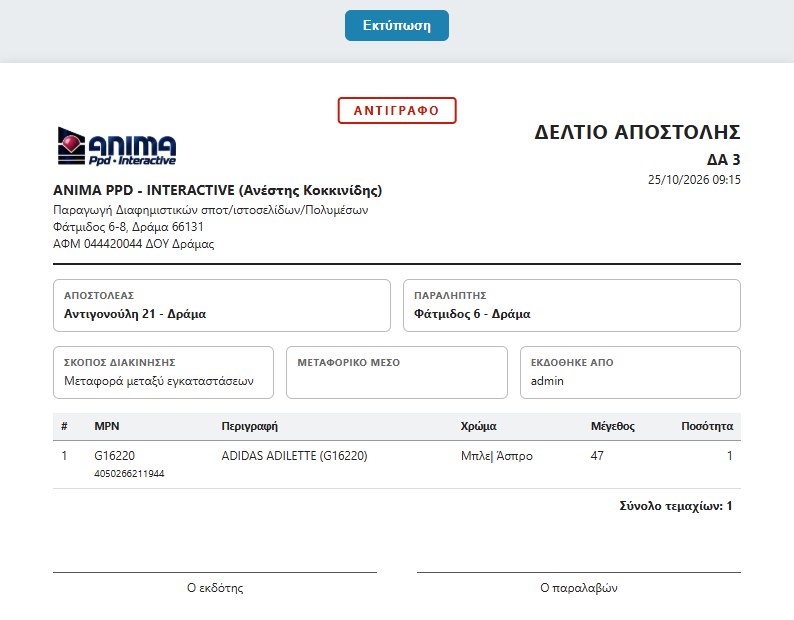
The printer icon on each row opens the document in a preview window, always as a copy. The original is therefore not issued again and no new number is created. It works for receipts, invoices, credit notes and delivery notes.
Cancelling and credit notes
The cancel icon (a circle with a diagonal line) appears only where it is allowed, and what it does depends on the type:
- Receipt or invoice: it is not deleted. Its credit note is issued in its place, with its own series and number, and the original document shows as “Cancelled”. This is allowed only for the last document of the sale and only if it has not already been cancelled.
- Delivery note that has not been sent: its status becomes “Cancelled”.
- Sale without a document record: it cannot be cancelled from here, because it is the sale itself. Cancel it from Orders or from a POS return.
Before the cancellation completes, the system asks for confirmation. At the end a message lists which documents were cancelled and which are not allowed to be cancelled, with the reason.
Deleting
The bin icon permanently deletes a document and appears only when both of these hold:
- the document has not been sent (no MARK and not in the “Sent” status),
- and, for receipts and invoices, it is the last document of the sale, so that no gap is created in the numbering.
Deleting cannot be undone and always asks for confirmation. If a document has already been sent, use cancellation, which issues a credit note.
Export to XLS / CSV
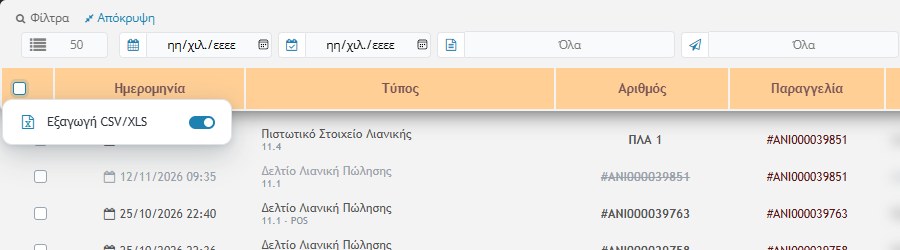
You select rows with the checkboxes at the start of each row, or all of them with the header checkbox. From the menu that opens there you can:
- Export CSV/XLS: if you have not selected any rows, all the rows that pass the filters are exported, not just the page you see. The switch next to it chooses the format (XLS or CSV) and your choice is remembered in your browser. The file contains date, type, number, order, customer, amount, status and MARK.
- Cancel the selected documents.
- Multiple deletion of the selected ones.
Multiple actions follow the same rules as single ones: whatever is not allowed (e.g. a document that has been sent) is skipped and reported in the message shown afterwards.
Permissions
Access is set from the Tool Menu. Viewing the page is a right of the tool, and its actions have separate rights: export, cancel (the save right) and delete. If a user lacks a right, the matching icon or option does not appear. Every cancellation, deletion and export is recorded in the User Logs with the user’s name.