
POS (Retail)
The POS (Retail) is the checkout of Anima eShop for physical stores. You scan or search for products, build the basket, pay by cash or card and the sale passes automatically into the orders and deducts stock from the right storage location. It works in the same space as the eShop, so a product has one price, one discount and one stock level, whether it is sold online or in store. You find it in the menu Retail (Pos).
The POS appears only when it is active. It is activated per customer, and with it the POS settings, delivery notes and document issuing appear. If you don’t see it in the menu, it has not been activated for your eShop.
- The POS screen
- Finding a product and size
- The cart
- Payment
- Parked carts
- Return / exchange
- Cash register and Z
- Settings
- Documents and printing
The POS screen
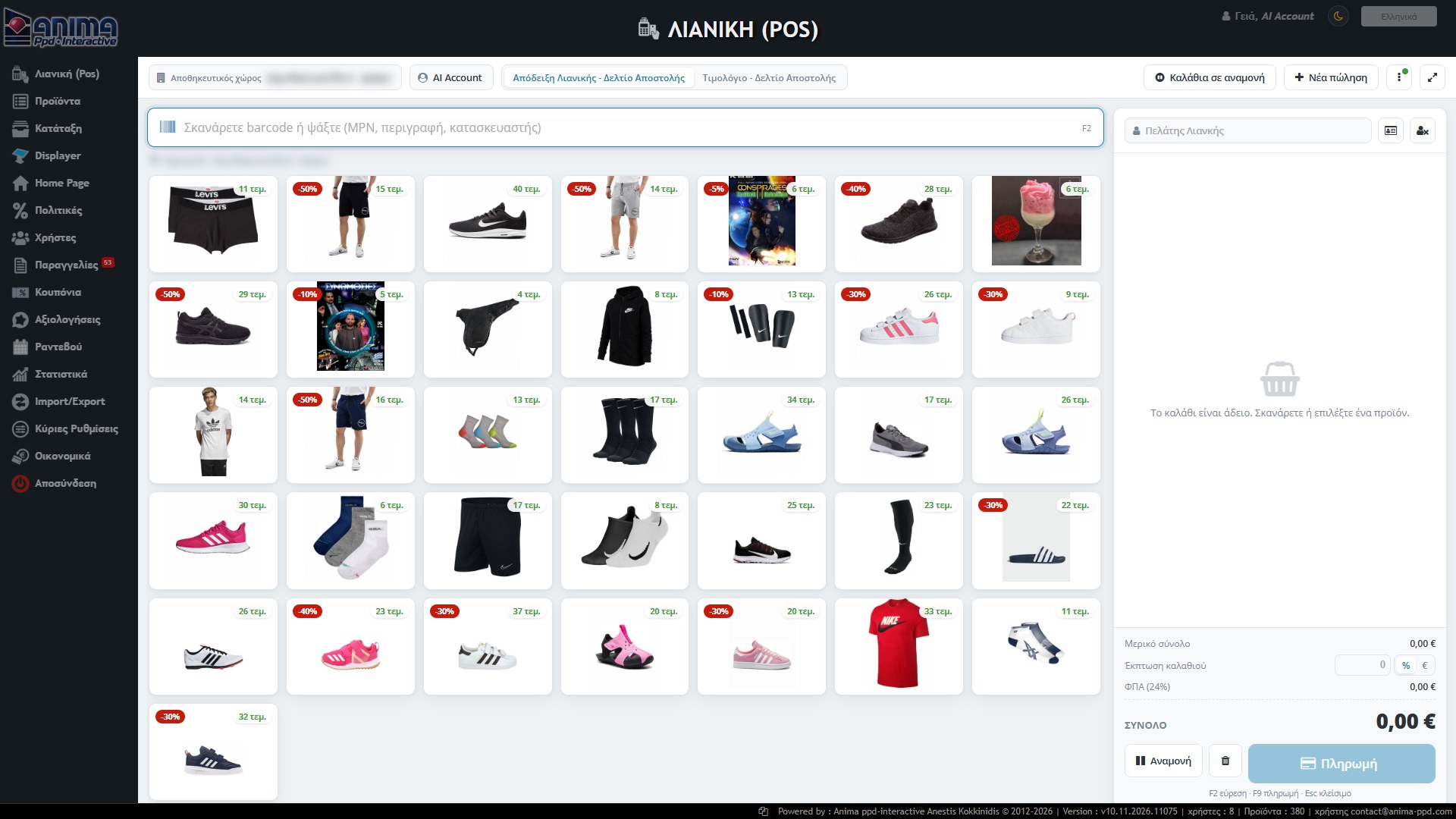
The screen has two parts: the products on the left and the cart on the right. In the top bar you find:
- Storage location: the store or warehouse from which the sale’s stock will be deducted.
- Seller: the user making the sale.
- Document type: Retail Receipt – Delivery Note or Invoice – Delivery Note.
- Parked carts and New sale.
- Actions menu (⋮): cash register, return / exchange and screen size setting.
- Maximise (↗): hides the management menu and gives the whole screen to the checkout.
When the search field is empty, below it the store’s popular products appear, as cards with a photo, the pieces available and the discount (e.g. -50%).
Shortcuts: F2 search, F9 payment, Esc close window.
Finding a product and size
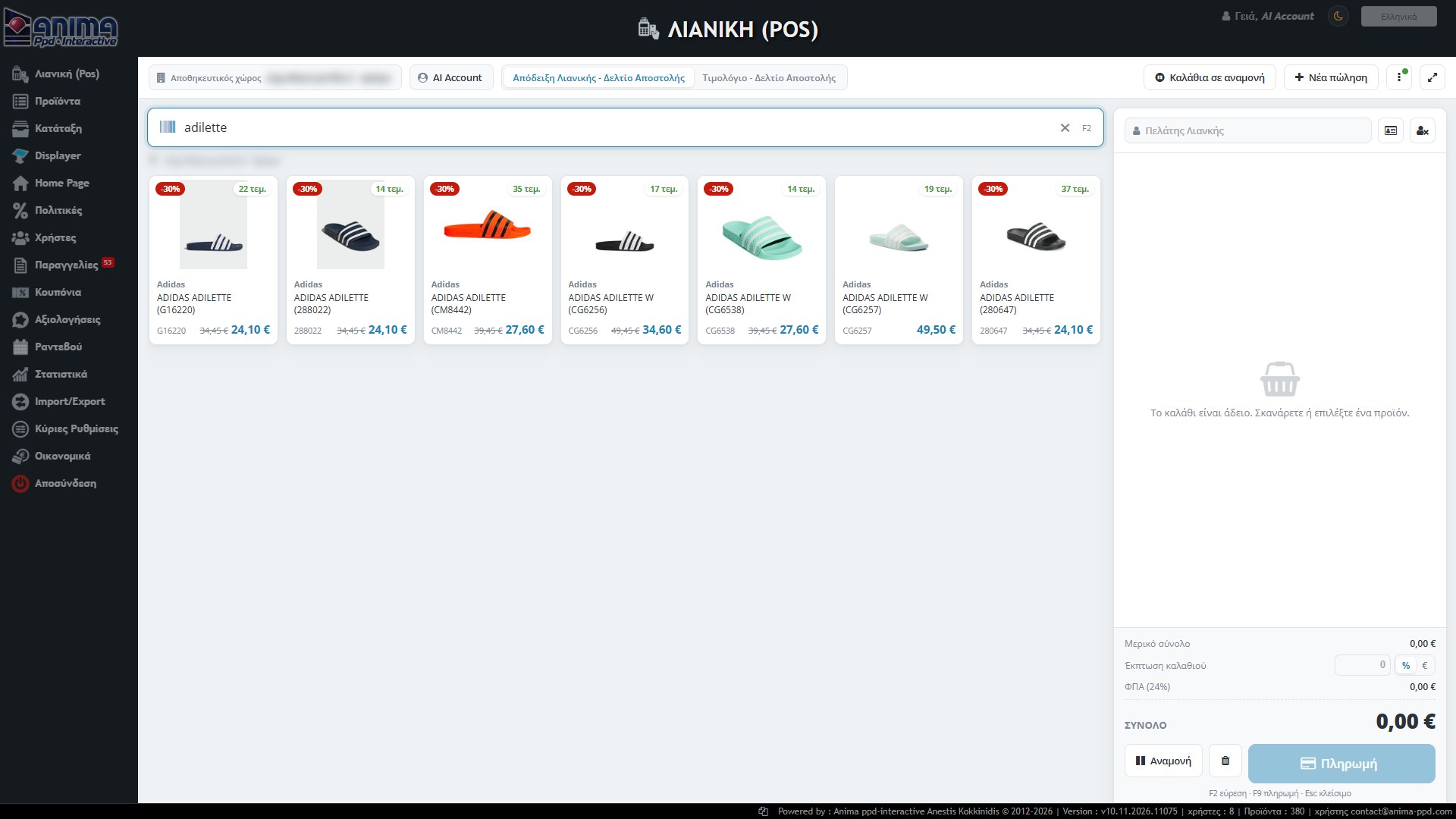
In the large field you scan the barcode of a product or type an MPN, description or manufacturer. The results appear immediately as cards. The price is the final one that applies at that moment: with the original struck through and the discount from the product card or the pricing policies.
With a click on a product the Size window opens:
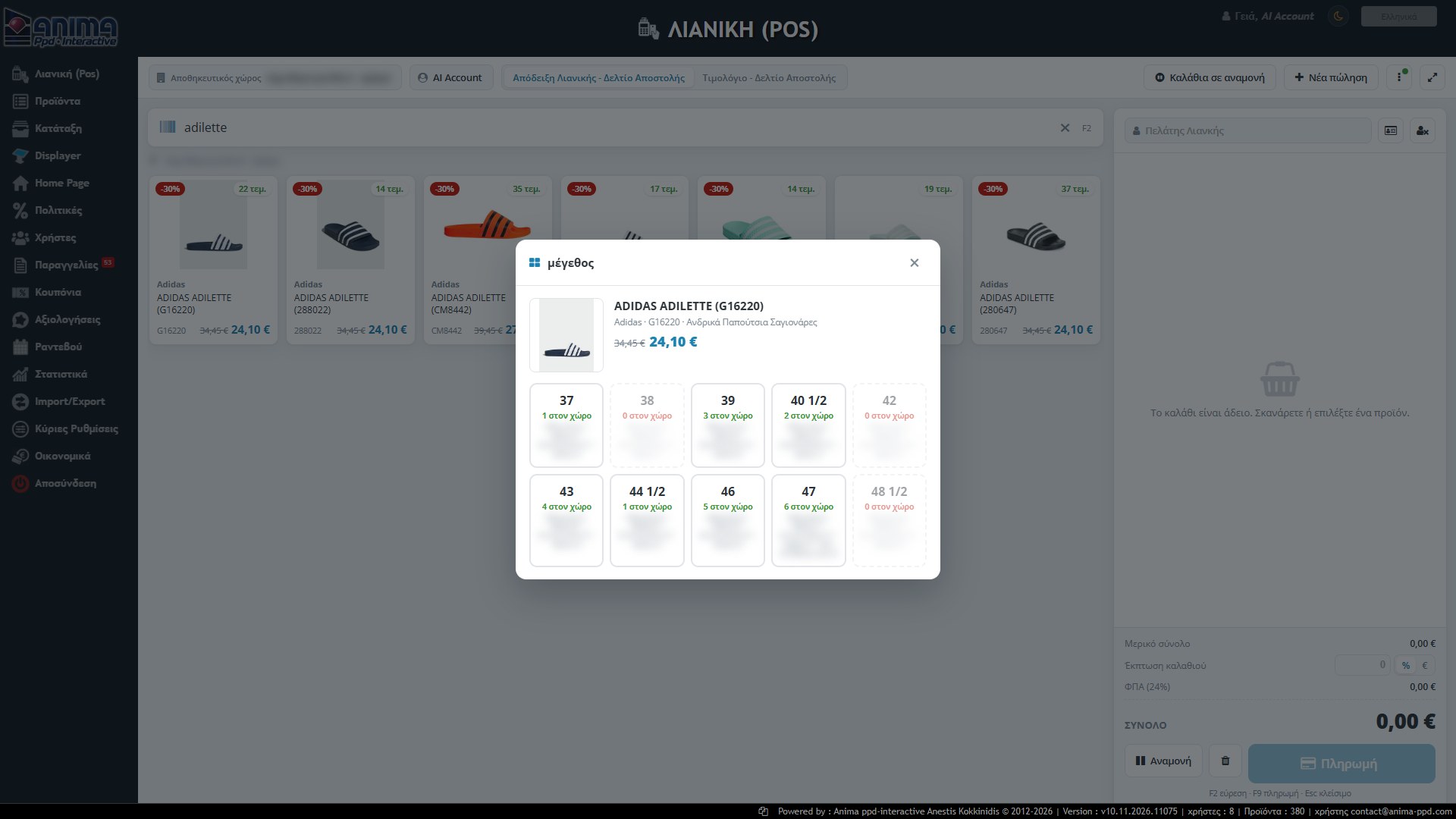
Each tile says “N in the location”. The bottom of each tile (blurred here, because it shows store names) informs about the existence of the size elsewhere too. With a click on an available size the product goes into the cart.
The cart
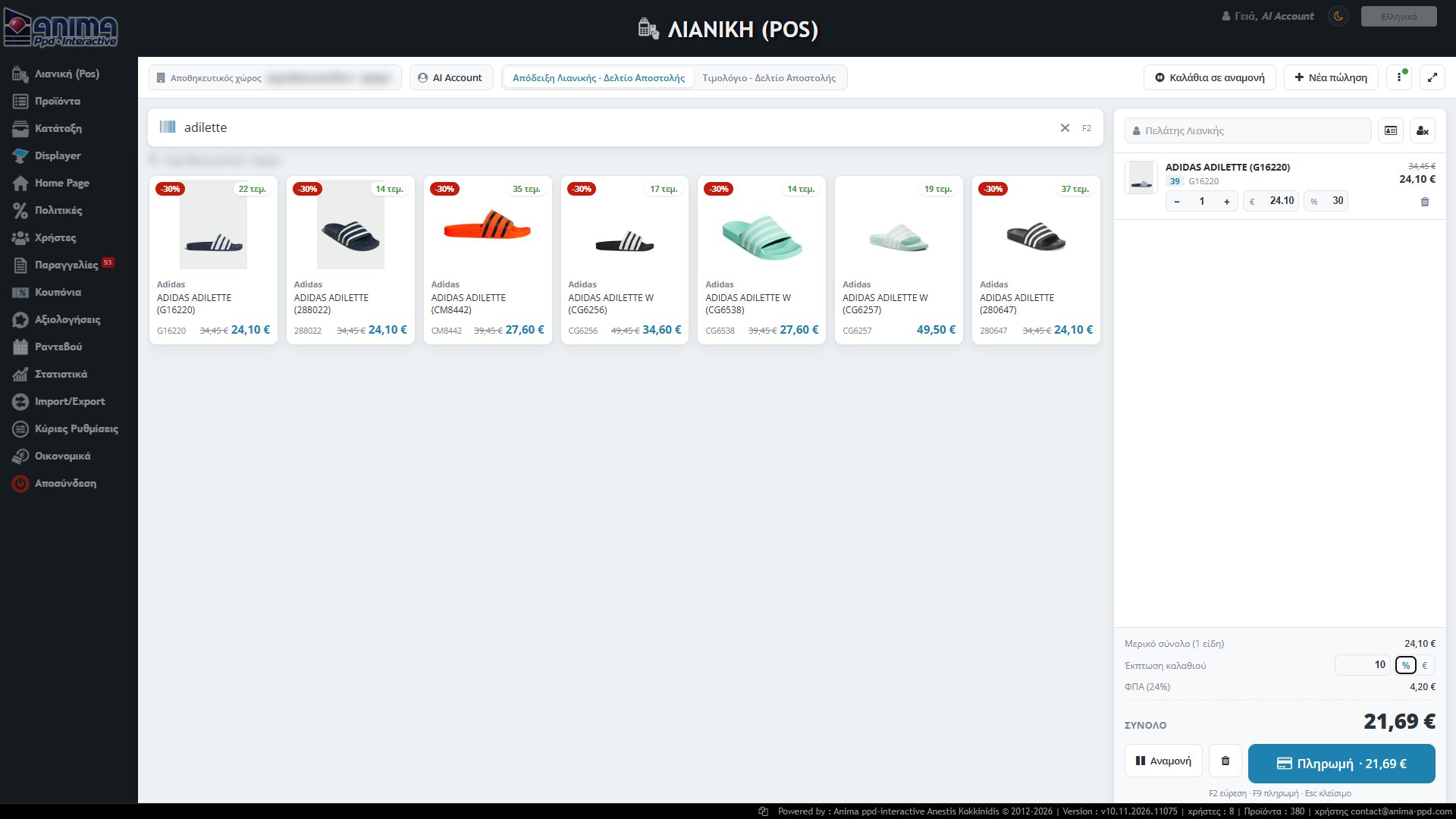
- Product line: photo, title, size and MPN. With the − / + you change the quantity. In the € and % fields you change the line’s price or discount, and the bin removes it.
- Subtotal: the sum of the lines, with the number of items.
- Cart discount: you write an amount and choose % or €.
- VAT and Total: calculated automatically with the rate from the settings (e.g. 24%).
- Customer: by default “Retail Customer”. In the field you search for an existing customer, the card icon opens their details (and the invoice details when you choose Invoice) and the X icon removes them.
- Bin: empties the cart.
If a product has no stock in the location, the POS follows the no-stock policy of the settings: either it warns and allows the sale, or blocks, or suggests a store that has it.
Payment
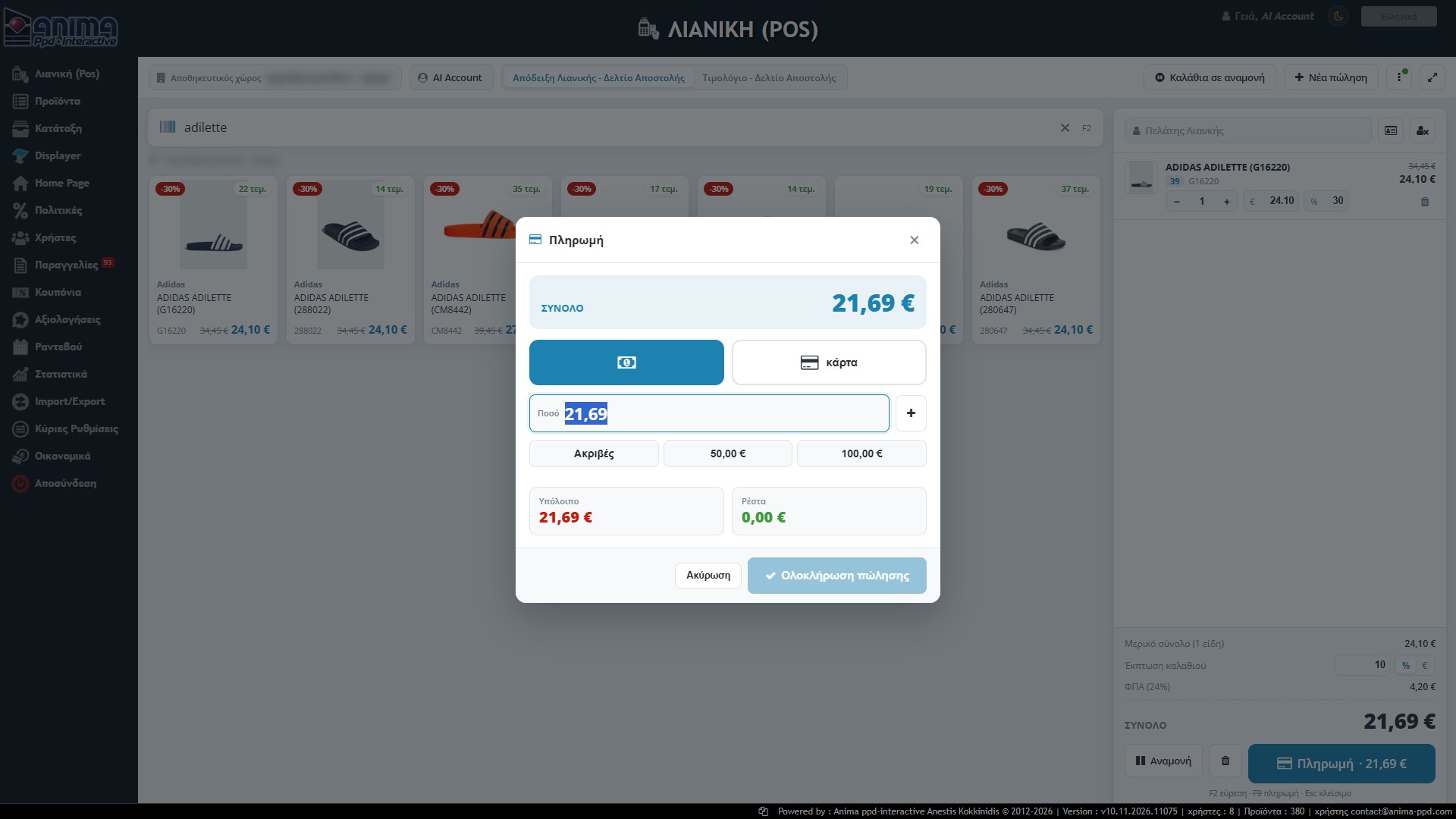
The Payment button (or F9) opens the payment window:
- You choose cash or card and the amount. The total is pre-filled.
- Mixed payment: add several payments with the +, e.g. €50 in cash and the rest by card.
- Quick amounts: Exact and the amounts from the settings (e.g. €50.00 and €100.00).
- Balance and Change are calculated by themselves.
- Complete sale: becomes active when the total is covered. The sale is registered as an order, the stock leaves the location and the printout (receipt or invoice) is produced.
Parked carts
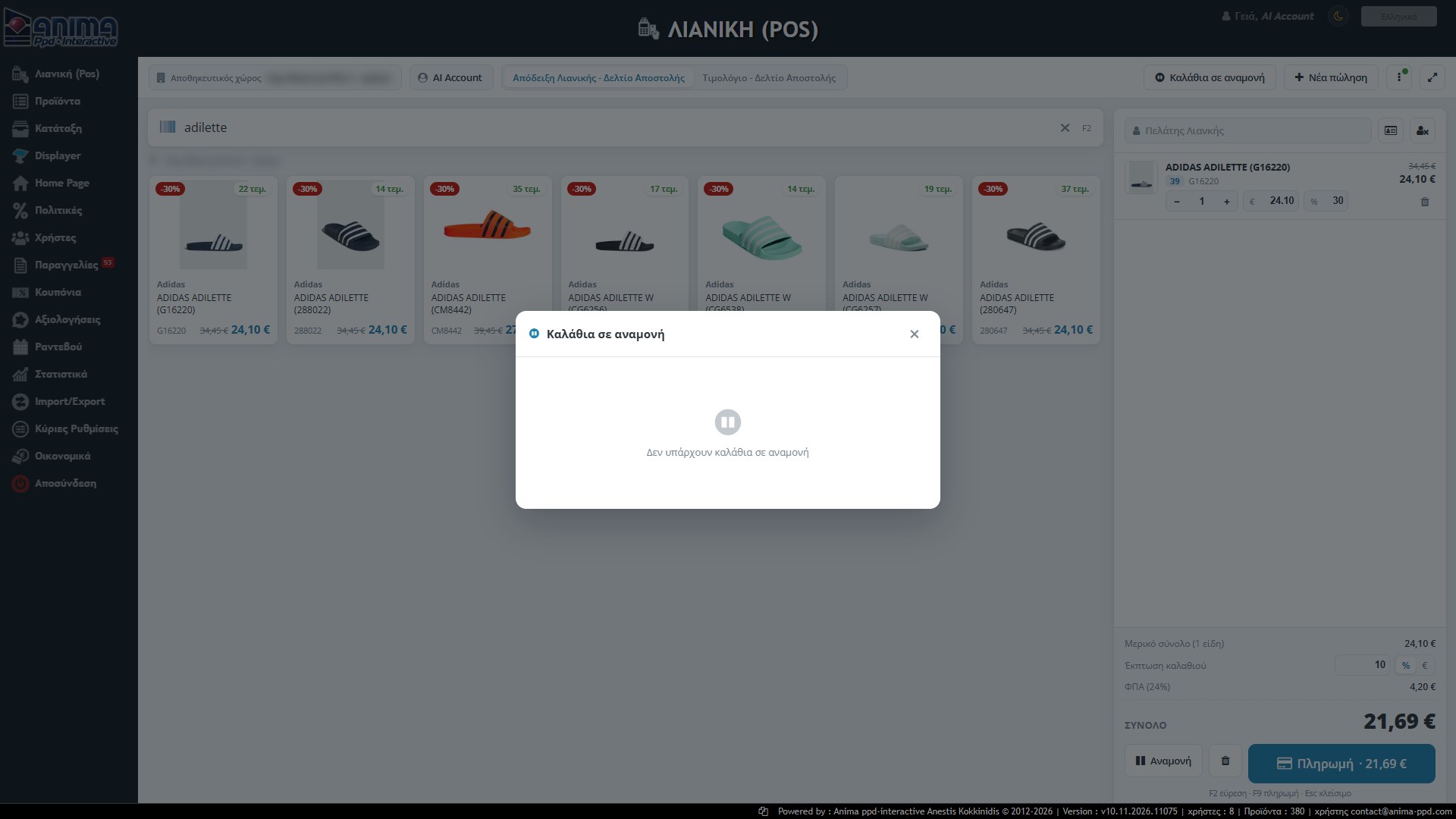
When the customer has to leave for a moment or another one comes to the checkout, press Park on the cart. The cart is saved and you can start a New sale. From the Parked carts button you find them again and continue from where you left off. Parked carts stay on the device where they were created.
Return / exchange
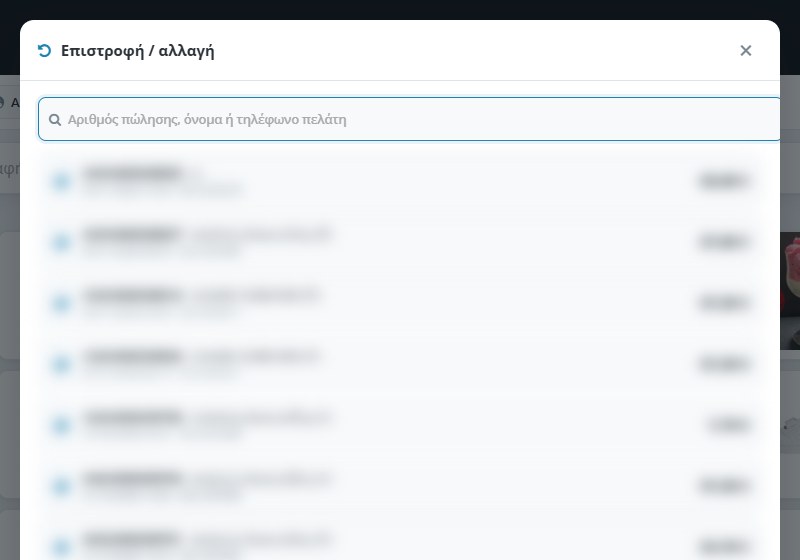
From the ⋮ menu → Return / exchange you find the original sale by number, name or customer phone. The list shows both POS sales and eShop orders, with a different icon. You choose which line and how many pieces are returned and the return goes into the same cart as a line.
- Return: the money is refunded (negative payment amount).
- Exchange: you also add the new products to the cart and only the difference is paid. If the value of the return is larger, the balance stays as credit.
- The stock goes back to the storage location, and the movement is recorded in the original order as history. The original sale does not change.
- A return note is produced.
With the ERP active, the return passes as a credit note from the Returns page.
Cash register and Z
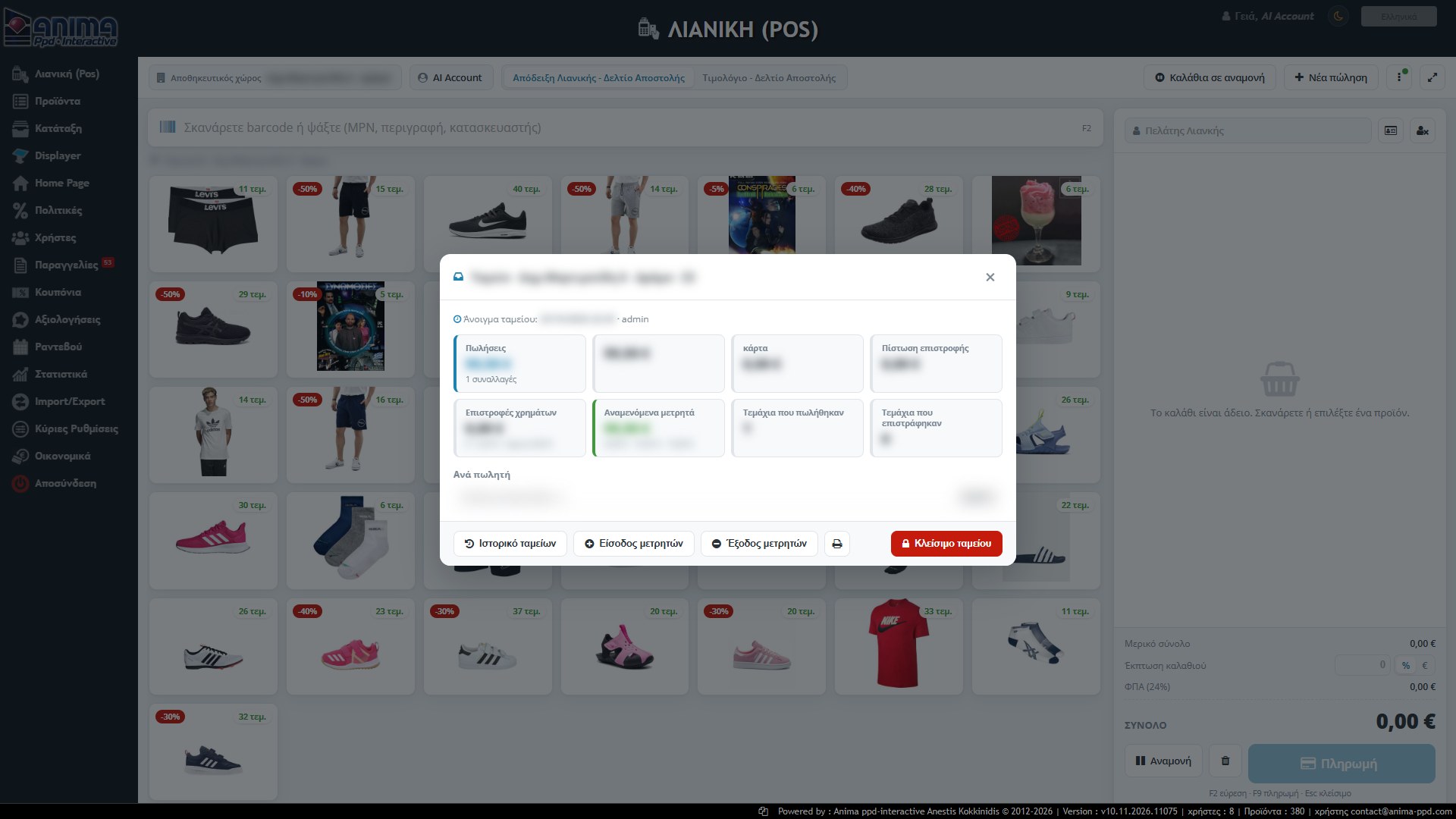
The cash register works with shifts. In the ⋮ menu the first line shows the status: e.g. “Register open, since 22:30, Z2”, with a green dot. You open the register at the start of the day with the drawer’s opening amount and close it at the end. The window shows:
- Sales (and how many transactions), cash and card,
- Return credits and Cash refunds,
- Expected cash: opening amount + cash collected − cash refunds + cash in − cash out,
- Pieces sold and returned,
- Per seller: each seller’s total.
At the bottom:
- Register history: the previous shifts.
- Cash in / Cash out: you record drawer movements other than sales (e.g. change you brought in, or a supplier payment).
- Print: prints the X (while the register is open) or the Z (at closing).
- Close register: closes the shift and produces the Z. Each storage location has its own Z numbering.
In the settings it is defined whether the register is mandatory (no sales without an open shift) or optional.
Settings
The POS settings are in the Platform Setup (“POS Settings” section) and are changed by the administrator:
- No-stock policy: warning, blocking or store suggestion.
- VAT rate (e.g. 24%).
- Quick cash amounts (e.g. 5, 10, 20, 50, 100).
- Default printing: A4 or 80 mm thermal printer, and whether printing happens automatically after the sale.
- Register: mandatory or optional.
The screen size is adjusted from the ⋮ menu: the button “Current window size as default” saves the current size as the base for the device, so the POS displays correctly on touch screens and small tablets.
Documents and printing
- Retail receipt and invoice: printed in a preview window, in A4 or 80 mm. The same documents are reprinted as a copy from the POS (sales search) and from the Orders.
- Delivery note: with the POS active, Internal Handling issues delivery notes per store, with series from the Dropdown Lists (“Document series”), and transfers the stock.
- eShop orders: with the POS active, when an order becomes “Delivered”, its document is also recorded. In the orders list the shipping status of the document is shown.
- Electronic issuing and myDATA: the settings for issuing through an ERP or an e-invoicing provider exist in the Platform Setup (“Document issuing”), but the connection to a specific provider or to myDATA is not yet active. It is activated when each customer’s provider is set.